快捷键注册概述
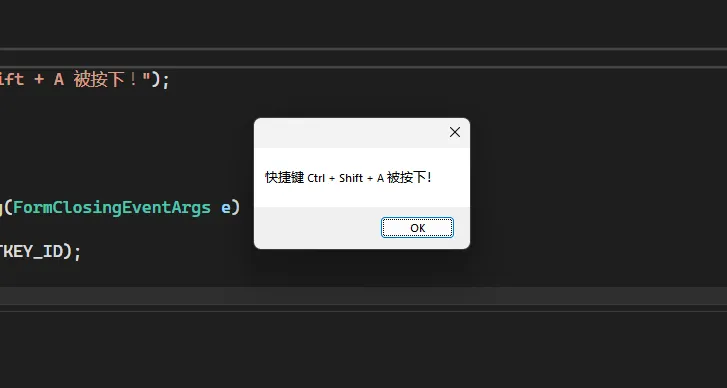
快捷键注册是一种在 Windows 应用程序中允许全局热键捕获的技术。通过正确注册快捷键,开发者可以让应用程序在任何情况下都能响应特定按键组合。
实现快捷键注册的关键 API
在 C# 中,我们主要使用 Windows API 中的以下方法来实现快捷键注册:
RegisterHotKey(): 注册全局热键UnregisterHotKey(): 取消注册热键WndProc(): 处理消息循环中的快捷键消息
完整代码示例
C#using System.Runtime.InteropServices;

namespace AppHotKey
{
    public partial class Form1 : Form
    {
        // 定义快捷键消息常量
        private const int WM_HOTKEY = 0x0312;

        // 导入 Windows API 函数
        [DllImport("user32.dll")]
        public static extern bool RegisterHotKey(IntPtr hWnd, int id, uint fsModifiers, uint vk);

        [DllImport("user32.dll")]
        public static extern bool UnregisterHotKey(IntPtr hWnd, int id);

        // 快捷键修饰符枚举
        [Flags]
        public enum KeyModifiers
        {
            None = 0,
            Alt = 1,
            Ctrl = 2,
            Shift = 4,
            Windows = 8
        }

        // 快捷键 ID
        private const int HOTKEY_ID = 1;

        public Form1()
        {
            InitializeComponent();

            // 注册快捷键:Ctrl + Shift + A
            RegisterHotKey(
                this.Handle,
                HOTKEY_ID,
                (uint)(KeyModifiers.Ctrl | KeyModifiers.Shift),
                (uint)Keys.A
            );
        }

        // 重写消息处理方法
        protected override void WndProc(ref Message m)
        {
            // 检查是否为快捷键消息
            if (m.Msg == WM_HOTKEY)
            {
                // 获取快捷键 ID
                int id = m.WParam.ToInt32();

                if (id == HOTKEY_ID)
                {
                    // 快捷键触发时的处理逻辑
                    HandleHotkeyTriggered();
                }
            }

            base.WndProc(ref m);
        }

        // 快捷键触发处理方法
        private void HandleHotkeyTriggered()
        {
            MessageBox.Show("快捷键 Ctrl + Shift + A 被按下!");
            // 在这里添加您想要执行的具体操作
        }

        // 程序关闭时取消注册快捷键
        protected override void OnFormClosing(FormClosingEventArgs e)
        {
            UnregisterHotKey(this.Handle, HOTKEY_ID);
            base.OnFormClosing(e);
        }

    }
}
什么是环境变量?
环境变量是操作系统中存储的动态值,可以被应用程序和系统进程使用。在C#中,我们可以通过多种方式读取、设置和管理环境变量。
读取环境变量
获取系统环境变量
C#using System.Collections;

namespace AppEnvironment
{
    internal class Program
    {
        static void Main(string[] args)
        {
            // 获取特定的系统环境变量
            string systemPath = Environment.GetEnvironmentVariable("PATH");
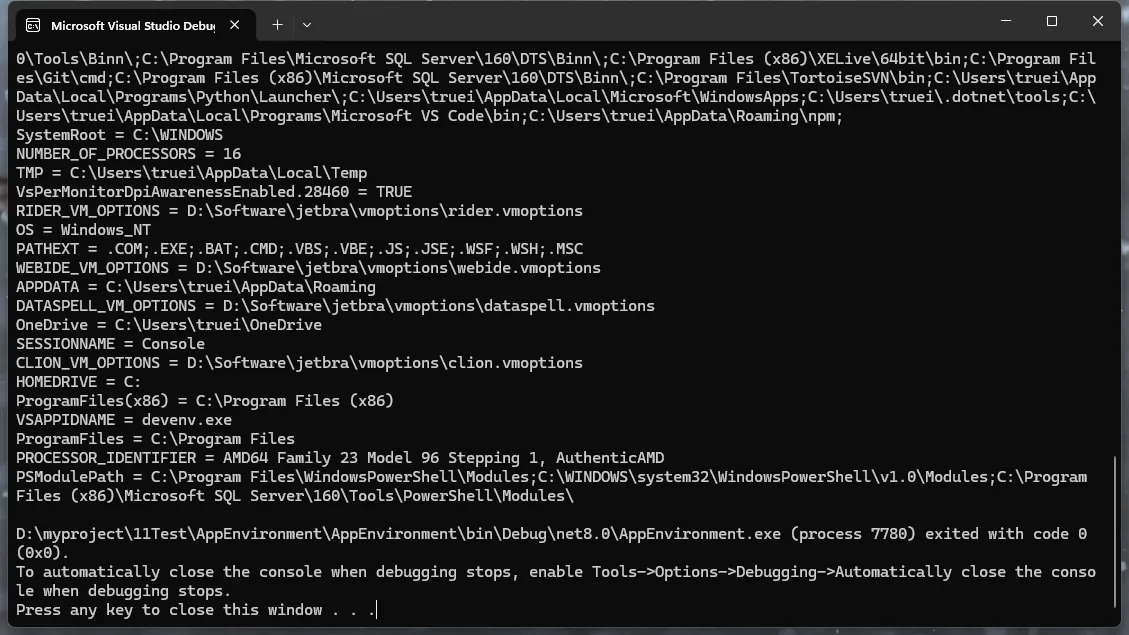
            Console.WriteLine("系统PATH:" + systemPath);

            // 获取所有环境变量
            foreach (DictionaryEntry env in Environment.GetEnvironmentVariables())
            {
                Console.WriteLine($"{env.Key} = {env.Value}");
            }
        }
    }
}
Windows 通知是与用户进行交互的重要方式。通过 Microsoft.Toolkit.Uwp.Notifications,我们可以轻松实现丰富的通知功能,包括基本通知、图片通知、交互式通知等。
环境准备
NuGet 包安装
PowerShellInstall-Package Microsoft.Toolkit.Uwp.Notifications
必要的 using 语句
C#using Microsoft.Toolkit.Uwp.Notifications;
using Windows.UI.Notifications;
using Windows.Data.Xml.Dom;
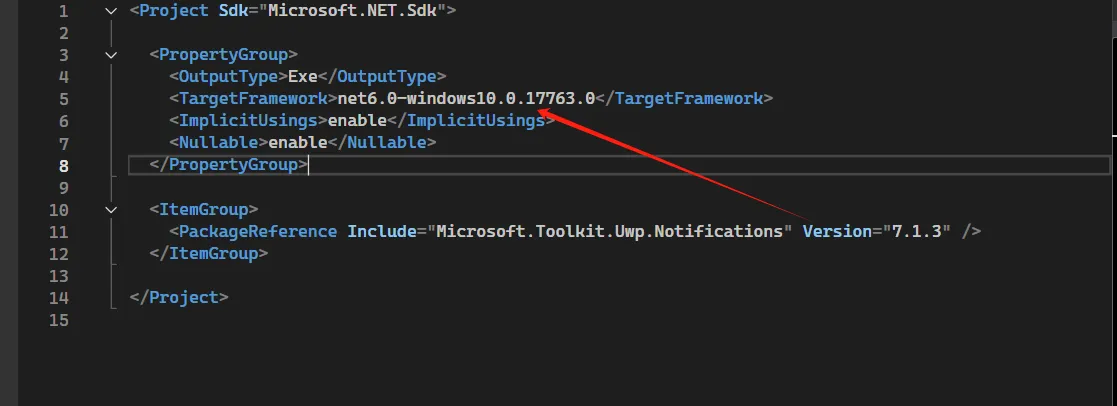
项目中对版本要求,一定是Windows10以上版本。
基础实现
首先,我们创建一个通知辅助类来封装常用的通知功能:
C#public class NotificationHelper
{
    /// <summary>
    /// 发送基本通知
    /// </summary>
    /// <param name="title">通知标题</param>
    /// <param name="content">通知内容</param>
    public static void SendBasicNotification(string title, string content)
    {
        var builder = new ToastContentBuilder()
            .AddText(title)
            .AddText(content);

        builder.Show();
    }
}
通知类型
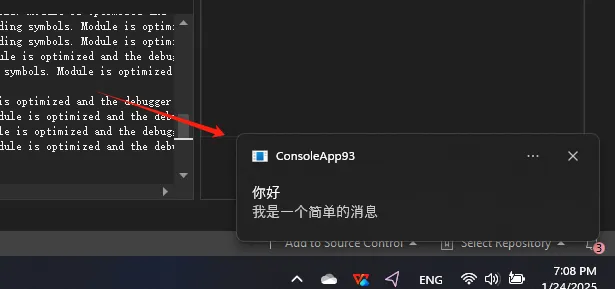
基本文本通知
C#public static void SendBasicNotification(string title, string content)
{
    var builder = new ToastContentBuilder()
        .AddText(title)
        .AddText(content);

    builder.Show();
}
概述
CustomScrollListView 是一个基于 C# 和 GDI+ 的自定义控件,继承自 Control 类,能够实现具有列头和项目的滚动列表视图。此控件支持多列展示,并可以通过定时器实现自动滚动效果,使得用户可以流畅地查看列表内容。
主要特性
- 列头支持:允许用户添加和自定义列头的文本、宽度以及背景和前景颜色。
- 项目管理:每列可以向其添加项目,并支持动态更新。
- 滚动效果:通过定时器控制滚动速度,实现流畅的滾动效果。
- 可见项目数控制:用户可以设置可见的项目数量,自动调整控件的尺寸以适应。
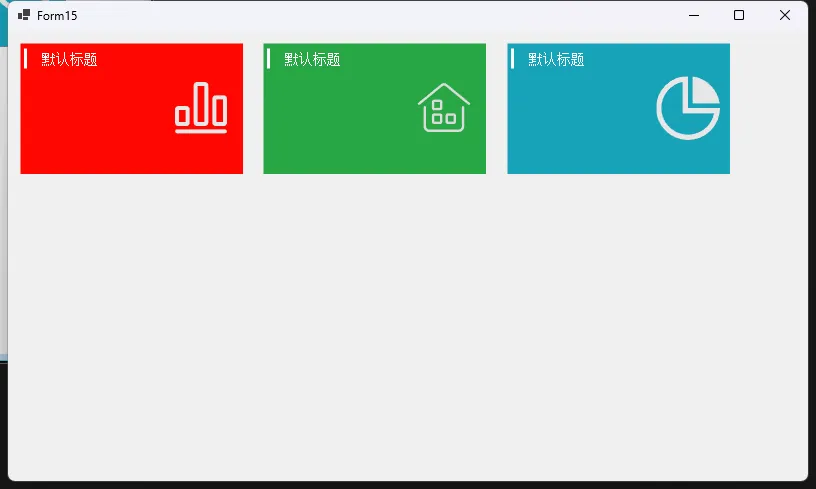
在 Windows Forms 应用程序开发中,有时我们需要创建更加美观、灵活的界面控件。这篇文章将深入解析一个自定义的 CustomPanel 控件,它不仅继承了标准 Panel 的功能,还增加了 Bootstrap 风格的颜色主题和丰富的定制选项。
项目准备
- 创建一个新的 C# Windows Forms 应用程序项目。
- 添加一个新的类文件,命名为
CustomPanel.cs。
实现自定义 Panel 控件
首先,在 CustomPanel.cs 文件中,引用必要的命名空间并创建 CustomPanel 类:
C#using System;
using System.Drawing;
using System.Windows.Forms;

namespace AppControls
{
    // 定义 Bootstrap 颜色枚举
    public enum BootstrapColors
    {
        Primary,
        Secondary,
        Success,
        Danger,
        Warning,
        Info,
        Light,
        Dark,
        White,
        Black
    }

    public class CustomPanel : Panel
    {
        // 标题属性
        public string Title { get; set; } = "默认标题";

        // 背景颜色属性(使用颜色枚举)
        private BootstrapColors _backgroundColor = BootstrapColors.Light;

        public BootstrapColors BackgroundColor
        {
            get => _backgroundColor;
            set
            {
                _backgroundColor = value;
                Invalidate(); // 触发重绘
            }
        }

        // 实际的背景颜色
        private Color ActualBackgroundColor => GetBootstrapColor(_backgroundColor);

        // 图标颜色属性
        public Color IconColor { get; set; } = Color.White;

        // 标题字体属性
        public Font TitleFont { get; set; } = new Font("Arial", 16, FontStyle.Bold);

        // 标题字体大小属性
        public float TitleFontSize
        {
            get => TitleFont.Size;
            set => TitleFont = new Font(TitleFont.FontFamily, value, TitleFont.Style);
        }

        // 新增图标属性
        private Image _panelIcon;
        public Image PanelIcon
        {
            get => _panelIcon;
            set
            {
                _panelIcon = value;
                Invalidate(); // 触发重绘
            }
        }

        // 图标是否可见
        public bool ShowIcon { get; set; } = false;

        // 获取对应的 Bootstrap 颜色
        private Color GetBootstrapColor(BootstrapColors color)
        {
            return color switch
            {
                BootstrapColors.Primary => Color.FromArgb(0, 123, 255),
                BootstrapColors.Secondary => Color.FromArgb(108, 117, 125),
                BootstrapColors.Success => Color.FromArgb(40, 167, 69),
                BootstrapColors.Danger => Color.FromArgb(255, 7, 2),
                BootstrapColors.Warning => Color.FromArgb(255, 193, 7),
                BootstrapColors.Info => Color.FromArgb(23, 162, 184),
                BootstrapColors.Light => Color.FromArgb(248, 249, 250),
                BootstrapColors.Dark => Color.FromArgb(52, 58, 64),
                BootstrapColors.White => Color.FromArgb(255, 255, 255),
                BootstrapColors.Black => Color.FromArgb(0, 0, 0),
                _ => Color.LightBlue, // 默认颜色
            };
        }

        // 重写 OnPaint 方法以自定义绘制
        protected override void OnPaint(PaintEventArgs e)
        {
            // 设置高质量绘制
            e.Graphics.SmoothingMode = System.Drawing.Drawing2D.SmoothingMode.AntiAlias;
            e.Graphics.TextRenderingHint = System.Drawing.Text.TextRenderingHint.ClearTypeGridFit;

            base.OnPaint(e);

            // 绘制背景
            using (SolidBrush brush = new SolidBrush(ActualBackgroundColor))
            {
                e.Graphics.FillRectangle(brush, e.ClipRectangle);
            }

            // 绘制图标(竖线)
            using (Pen pen = new Pen(IconColor, 3)) // 设置颜色和宽度
            {
                e.Graphics.DrawLine(pen, new Point(5, 5), new Point(5, 25)); // 绘制竖线
            }

            // 计算标题的高度和居中 Y 坐标
            SizeF titleSize = e.Graphics.MeasureString(Title, TitleFont); // 获取标题的尺寸
            float titleY = (25 - titleSize.Height) / 2 + 5; // 计算标题的 Y 坐标,使其居中

            // 绘制标题
            using (SolidBrush textBrush = new SolidBrush(Color.White))
            {
                e.Graphics.DrawString(Title, TitleFont, textBrush, new PointF(20, titleY)); // 绘制标题
            }

            // 绘制右侧图标
            if (ShowIcon && PanelIcon != null)
            {
                // 计算图标的位置(右侧居中)
                int iconSize = 64;
                int iconX = Width - iconSize - 10; // 距离右边缘10像素
                int iconY = (Height - iconSize) / 2;

                // 绘制图标
                e.Graphics.DrawImage(PanelIcon, new Rectangle(iconX, iconY, iconSize, iconSize));
            }
        }
    }
}