
目录
在Python桌面应用开发中,列表控件是用户界面设计的重要组成部分。无论是文件管理器的文件列表、音乐播放器的播放列表,还是系统配置界面的选项列表,Listbox控件都扮演着关键角色。
对于Windows下的Python开发者来说,掌握Tkinter的Listbox控件不仅能提升应用的用户体验,更是构建专业上位机软件的必备技能。本文将从实际项目需求出发,详细解析Listbox的应用技巧,帮助你快速掌握这个强大的列表控件,让你的Python应用更加专业和实用。
🔍 问题分析:为什么选择Listbox?
在实际的Python开发项目中,我们经常遇到需要展示多个选项供用户选择的场景:
常见应用场景:
- 数据管理系统:显示数据库记录列表
- 文件处理工具:展示待处理文件清单
- 配置管理界面:显示可选配置项
- 日志查看器:展示系统日志条目
传统的按钮或标签控件在处理大量数据时显得力不从心,而Listbox控件能够:
- 高效展示:支持数百甚至数千条记录
- 交互友好:支持单选、多选操作
- 滚动支持:自动处理超出显示区域的内容
- 事件响应:灵活的选择事件处理
💡 解决方案:Listbox核心特性解析
🎯 基础属性配置
Listbox控件的核心属性决定了其外观和行为:
Pythonlistbox = tk.Listbox(
    parent,                    # 父容器
    selectmode=tk.SINGLE,     # 选择模式:SINGLE/MULTIPLE/EXTENDED
    height=10,                # 显示行数
    width=30,                 # 显示宽度
    font=('Arial', 12),       # 字体设置
    bg='white',               # 背景色
    fg='black',               # 前景色
    selectbackground='blue'   # 选中背景色
)
🔧 选择模式详解
不同选择模式的应用场景:
- SINGLE:单选模式,适用于配置选择
- MULTIPLE:多选模式,适用于批量操作
- EXTENDED:扩展选择,支持Shift和Ctrl键
🚀 代码实战:构建完整应用示例
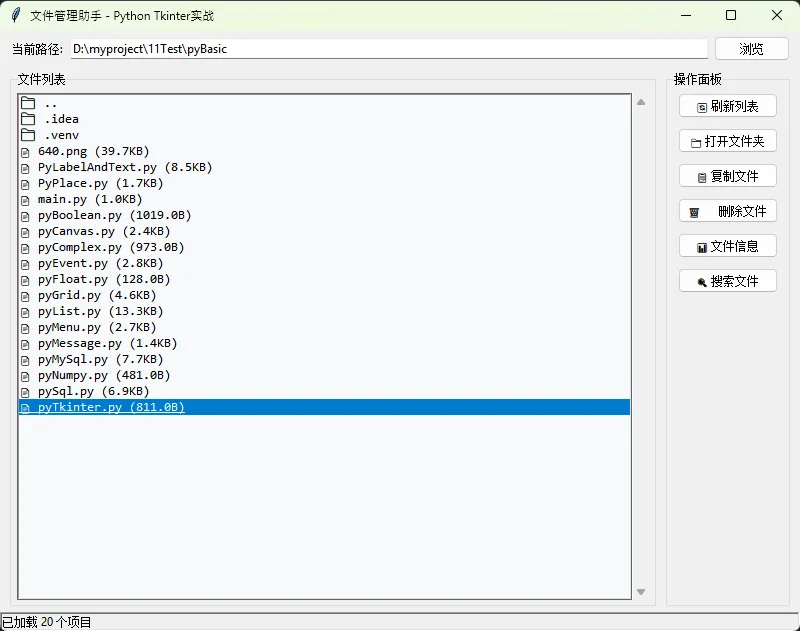
📱 实战项目:文件管理助手
让我们构建一个实用的文件管理助手,展示Listbox的强大功能:
Pythonimport tkinter as tk
from tkinter import ttk, messagebox, filedialog
import os
import shutil

class FileManagerApp:
    def __init__(self, root):
        self.root = root
        self.root.title("文件管理助手 - Python Tkinter实战")
        self.root.geometry("800x600")

        # 创建主框架
        self.setup_ui()

        # 初始化文件列表
        self.current_path = os.getcwd()
        self.refresh_file_list()

    def setup_ui(self):
        """设置用户界面"""
        # 顶部路径显示框架
        path_frame = ttk.Frame(self.root)
        path_frame.pack(fill=tk.X, padx=10, pady=5)

        ttk.Label(path_frame, text="当前路径:").pack(side=tk.LEFT)
        self.path_var = tk.StringVar()
        self.path_entry = ttk.Entry(path_frame, textvariable=self.path_var, width=50)
        self.path_entry.pack(side=tk.LEFT, padx=(5, 0), fill=tk.X, expand=True)

        ttk.Button(path_frame, text="浏览", command=self.browse_folder).pack(side=tk.RIGHT, padx=(5, 0))

        # 主要内容框架
        main_frame = ttk.Frame(self.root)
        main_frame.pack(fill=tk.BOTH, expand=True, padx=10, pady=5)

        # 文件列表框架(左侧)
        list_frame = ttk.LabelFrame(main_frame, text="文件列表")
        list_frame.pack(side=tk.LEFT, fill=tk.BOTH, expand=True, padx=(0, 5))

        # 创建Listbox with滚动条
        listbox_frame = ttk.Frame(list_frame)
        listbox_frame.pack(fill=tk.BOTH, expand=True, padx=5, pady=5)

        # Listbox控件 - 核心组件
        self.file_listbox = tk.Listbox(
            listbox_frame,
            selectmode=tk.EXTENDED,  # 支持多选
            height=20,
            font=('Consolas', 10),   # 等宽字体便于对齐
            bg='#f8f9fa',
            selectbackground='#007acc',
            selectforeground='white'
        )

        # 滚动条配置
        scrollbar = ttk.Scrollbar(listbox_frame, orient=tk.VERTICAL)
        self.file_listbox.config(yscrollcommand=scrollbar.set)
        scrollbar.config(command=self.file_listbox.yview)

        # 布局
        self.file_listbox.pack(side=tk.LEFT, fill=tk.BOTH, expand=True)
        scrollbar.pack(side=tk.RIGHT, fill=tk.Y)

        # 绑定双击事件
        self.file_listbox.bind('<Double-1>', self.on_double_click)

        # 操作面板(右侧)
        self.setup_operation_panel(main_frame)

        # 底部状态栏
        self.status_var = tk.StringVar(value="就绪")
        status_bar = ttk.Label(self.root, textvariable=self.status_var, relief=tk.SUNKEN)
        status_bar.pack(side=tk.BOTTOM, fill=tk.X)

    def setup_operation_panel(self, parent):
        """设置操作面板"""
        op_frame = ttk.LabelFrame(parent, text="操作面板")
        op_frame.pack(side=tk.RIGHT, fill=tk.Y, padx=(5, 0))

        # 按钮配置
        buttons = [
            ("🔄 刷新列表", self.refresh_file_list),
            ("📁 打开文件夹", self.open_selected),
            ("📋 复制文件", self.copy_files),
            ("🗑️ 删除文件", self.delete_files),
            ("📊 文件信息", self.show_file_info),
            ("🔍 搜索文件", self.search_files)
        ]

        for text, command in buttons:
            btn = ttk.Button(op_frame, text=text, command=command, width=15)
            btn.pack(pady=5, padx=10, fill=tk.X)

    def refresh_file_list(self):
        """刷新文件列表 - Listbox核心操作"""
        try:
            # 清空现有列表
            self.file_listbox.delete(0, tk.END)

            # 更新路径显示
            self.path_var.set(self.current_path)

            # 获取文件列表
            items = []

            # 添加返回上级目录选项
            if self.current_path != os.path.dirname(self.current_path):
                items.append(("📁 ..", "directory", ".."))

            # 遍历当前目录
            try:
                for item in sorted(os.listdir(self.current_path)):
                    item_path = os.path.join(self.current_path, item)
                    if os.path.isdir(item_path):
                        items.append((f"📁 {item}", "directory", item))
                    else:
                        # 获取文件大小
                        try:
                            size = os.path.getsize(item_path)
                            size_str = self.format_size(size)
                            items.append((f"📄 {item} ({size_str})", "file", item))
                        except:
                            items.append((f"📄 {item}", "file", item))

            except PermissionError:
                messagebox.showerror("错误", "没有访问权限")
                return

            # 填充Listbox
            for display_text, item_type, real_name in items:
                self.file_listbox.insert(tk.END, display_text)

            # 存储实际文件名映射
            self.file_mapping = {i: (item_type, real_name) for i, (_, item_type, real_name) in enumerate(items)}

            self.status_var.set(f"已加载 {len(items)} 个项目")

        except Exception as e:
            messagebox.showerror("错误", f"刷新失败: {str(e)}")

    def format_size(self, size_bytes):
        """格式化文件大小显示"""
        if size_bytes == 0:
            return "0B"

        size_names = ["B", "KB", "MB", "GB"]
        i = 0
        while size_bytes >= 1024 and i < len(size_names) - 1:
            size_bytes /= 1024.0
            i += 1

        return f"{size_bytes:.1f}{size_names[i]}"

    def on_double_click(self, event):
        """双击事件处理"""
        selection = self.file_listbox.curselection()
        if not selection:
            return

        index = selection[0]
        if index in self.file_mapping:
            item_type, real_name = self.file_mapping[index]

            if item_type == "directory":
                if real_name == "..":
                    # 返回上级目录
                    self.current_path = os.path.dirname(self.current_path)
                else:
                    # 进入子目录
                    self.current_path = os.path.join(self.current_path, real_name)

                self.refresh_file_list()
            else:
                # 打开文件
                file_path = os.path.join(self.current_path, real_name)
                try:
                    os.startfile(file_path)  # Windows系统
                except:
                    messagebox.showinfo("提示", f"无法打开文件: {real_name}")

    def get_selected_files(self):
        """获取选中的文件"""
        selection = self.file_listbox.curselection()
        selected_files = []

        for index in selection:
            if index in self.file_mapping:
                item_type, real_name = self.file_mapping[index]
                if item_type == "file":
                    selected_files.append(real_name)

        return selected_files

    def copy_files(self):
        """复制选中文件"""
        selected_files = self.get_selected_files()

        if not selected_files:
            messagebox.showwarning("警告", "请先选择要复制的文件")
            return

        # 选择目标文件夹
        target_dir = filedialog.askdirectory(title="选择目标文件夹")
        if not target_dir:
            return

        try:
            copied_count = 0
            for filename in selected_files:
                source_path = os.path.join(self.current_path, filename)
                target_path = os.path.join(target_dir, filename)

                if os.path.exists(target_path):
                    result = messagebox.askyesnocancel(
                        "文件已存在",
                        f"文件 {filename} 已存在,是否覆盖?\n\n点击'是'覆盖,'否'跳过,'取消'停止操作"
                    )
                    if result is None:  # 取消
                        break
                    elif not result:    # 否,跳过
                        continue

                shutil.copy2(source_path, target_path)
                copied_count += 1

            if copied_count > 0:
                messagebox.showinfo("成功", f"已成功复制 {copied_count} 个文件")
                self.status_var.set(f"复制完成: {copied_count} 个文件")

        except Exception as e:
            messagebox.showerror("错误", f"复制失败: {str(e)}")

    def delete_files(self):
        """删除选中文件"""
        selected_files = self.get_selected_files()

        if not selected_files:
            messagebox.showwarning("警告", "请先选择要删除的文件")
            return

        # 确认删除
        result = messagebox.askyesno(
            "确认删除",
            f"确定要删除选中的 {len(selected_files)} 个文件吗?\n\n此操作不可恢复!"
        )

        if not result:
            return

        try:
            deleted_count = 0
            for filename in selected_files:
                file_path = os.path.join(self.current_path, filename)
                os.remove(file_path)
                deleted_count += 1

            messagebox.showinfo("成功", f"已成功删除 {deleted_count} 个文件")
            self.refresh_file_list()  # 刷新列表

        except Exception as e:
            messagebox.showerror("错误", f"删除失败: {str(e)}")

    def show_file_info(self):
        """显示文件信息"""
        selected_files = self.get_selected_files()

        if len(selected_files) != 1:
            messagebox.showwarning("警告", "请选择一个文件查看信息")
            return

        filename = selected_files[0]
        file_path = os.path.join(self.current_path, filename)

        try:
            stat_info = os.stat(file_path)

            info_text = f"""文件信息:

文件名: {filename}
路径: {file_path}
大小: {self.format_size(stat_info.st_size)}
创建时间: {self.format_time(stat_info.st_ctime)}
修改时间: {self.format_time(stat_info.st_mtime)}
访问时间: {self.format_time(stat_info.st_atime)}
"""

            messagebox.showinfo("文件信息", info_text)

        except Exception as e:
            messagebox.showerror("错误", f"获取文件信息失败: {str(e)}")

    def format_time(self, timestamp):
        """格式化时间显示"""
        import time
        return time.strftime("%Y-%m-%d %H:%M:%S", time.localtime(timestamp))

    def search_files(self):
        """搜索文件功能"""
        # 创建搜索对话框
        search_window = tk.Toplevel(self.root)
        search_window.title("搜索文件")
        search_window.geometry("400x150")
        search_window.transient(self.root)
        search_window.grab_set()

        # 搜索输入框
        ttk.Label(search_window, text="搜索关键词:").pack(pady=10)

        search_var = tk.StringVar()
        search_entry = ttk.Entry(search_window, textvariable=search_var, width=40)
        search_entry.pack(pady=5)
        search_entry.focus()

        def perform_search():
            keyword = search_var.get().strip().lower()
            if not keyword:
                return

            # 清空当前选择
            self.file_listbox.selection_clear(0, tk.END)

            # 搜索匹配项
            matches = []
            for i in range(self.file_listbox.size()):
                item_text = self.file_listbox.get(i).lower()
                if keyword in item_text:
                    matches.append(i)
                    self.file_listbox.selection_set(i)

            if matches:
                # 滚动到第一个匹配项
                self.file_listbox.see(matches[0])
                messagebox.showinfo("搜索结果", f"找到 {len(matches)} 个匹配项")
            else:
                messagebox.showinfo("搜索结果", "未找到匹配项")

            search_window.destroy()

        # 按钮框架
        btn_frame = ttk.Frame(search_window)
        btn_frame.pack(pady=20)

        ttk.Button(btn_frame, text="搜索", command=perform_search).pack(side=tk.LEFT, padx=5)
        ttk.Button(btn_frame, text="取消", command=search_window.destroy).pack(side=tk.LEFT, padx=5)

        # 绑定回车键
        search_entry.bind('<Return>', lambda e: perform_search())

    def browse_folder(self):
        """浏览文件夹"""
        folder = filedialog.askdirectory(initialdir=self.current_path)
        if folder:
            self.current_path = folder
            self.refresh_file_list()

    def open_selected(self):
        """打开选中的文件夹"""
        selection = self.file_listbox.curselection()
        if not selection:
            messagebox.showwarning("警告", "请先选择一个项目")
            return

        index = selection[0]
        if index in self.file_mapping:
            item_type, real_name = self.file_mapping[index]
            if item_type == "directory" and real_name != "..":
                self.current_path = os.path.join(self.current_path, real_name)
                self.refresh_file_list()

# 启动应用程序
if __name__ == "__main__":
    root = tk.Tk()
    app = FileManagerApp(root)
    root.mainloop()
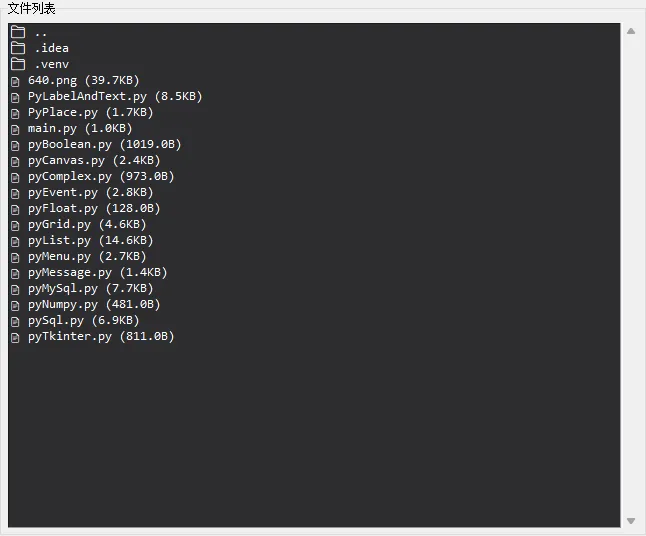
🎨 界面优化技巧
为了提升用户体验,我们可以添加更多界面优化:
Python# 自定义样式配置
def setup_styles(self):
    """配置界面样式"""
    style = ttk.Style()

    # 配置按钮样式
    style.configure("Action.TButton",
                   font=('Arial', 10, 'bold'),
                   padding=(10, 5))

    # 配置标签框样式
    style.configure("Title.TLabelframe.Label",
                   font=('Arial', 12, 'bold'),
                   foreground='#2c3e50')

# Listbox颜色主题配置
def apply_theme(self, theme='default'):
    """应用颜色主题"""
    themes = {
        'default': {
            'bg': '#ffffff',
            'fg': '#000000',
            'selectbackground': '#0078d4',
            'selectforeground': '#ffffff'
        },
        'dark': {
            'bg': '#2d2d30',
            'fg': '#ffffff',
            'selectbackground': '#007acc',
            'selectforeground': '#ffffff'
        },
        'green': {
            'bg': '#f0f8f0',
            'fg': '#2d5016',
            'selectbackground': '#28a745',
            'selectforeground': '#ffffff'
        }
    }

    if theme in themes:
        config = themes[theme]
        self.file_listbox.config(**config)
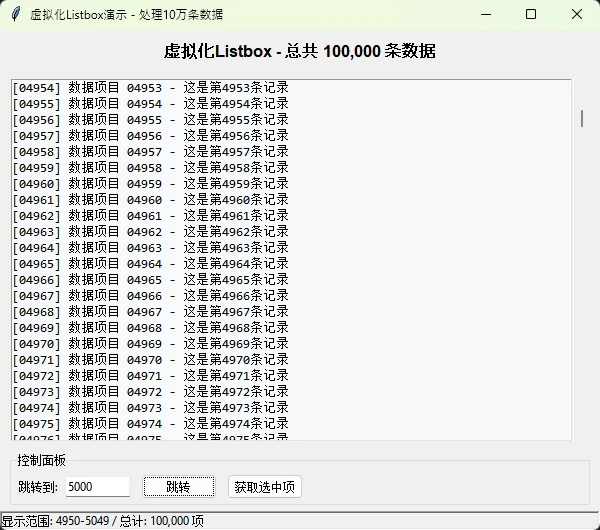
⚡ 性能优化策略
处理大量数据时的优化技巧:
Pythonimport tkinter as tk
from tkinter import ttk


class VirtualListbox:
    """虚拟化Listbox - 处理大量数据"""

    def __init__(self, parent, data_source):
        self.data_source = data_source
        self.visible_range = (0, 100)  # 只显示100项
        self.window_size = 100  # 窗口大小

        # 创建主框架
        self.frame = ttk.Frame(parent)
        self.frame.pack(fill=tk.BOTH, expand=True)

        # 创建Listbox和滚动条
        self.setup_widgets()

        # 初始化显示
        self.update_visible_items()

    def setup_widgets(self):
        """设置控件"""
        # 创建Listbox
        self.listbox = tk.Listbox(
            self.frame,
            height=20,
            font=('Consolas', 10),
            bg='#f8f9fa',
            selectbackground='#007acc'
        )

        # 创建滚动条
        self.scrollbar = ttk.Scrollbar(self.frame, orient=tk.VERTICAL)

        # 配置滚动条
        self.scrollbar.config(command=self.on_scrollbar_move)

        # 布局
        self.listbox.pack(side=tk.LEFT, fill=tk.BOTH, expand=True)
        self.scrollbar.pack(side=tk.RIGHT, fill=tk.Y)

        # 绑定事件
        self.listbox.bind('<MouseWheel>', self.on_mousewheel)
        self.listbox.bind('<<ListboxSelect>>', self.on_select)

        # 更新滚动条
        self.update_scrollbar()

    def update_visible_items(self):
        """更新可见项目"""
        start, end = self.visible_range

        # 清空现有项目
        self.listbox.delete(0, tk.END)

        # 添加可见项目
        visible_data = self.data_source[start:end]
        for i, item in enumerate(visible_data):
            # 显示项目编号和内容
            display_text = f"[{start + i + 1:05d}] {item}"
            self.listbox.insert(tk.END, display_text)

        # 更新滚动条位置
        self.update_scrollbar()

    def update_scrollbar(self):
        """更新滚动条位置"""
        total_items = len(self.data_source)
        if total_items == 0:
            self.scrollbar.set(0, 1)
            return

        start, end = self.visible_range

        # 计算滚动条位置 (0.0 到 1.0)
        top = start / total_items
        bottom = end / total_items

        self.scrollbar.set(top, bottom)

    def on_mousewheel(self, event):
        """处理鼠标滚轮事件"""
        # 计算滚动步长
        delta = -1 * (event.delta // 120)  # Windows下的滚轮增量

        self.scroll_by_delta(delta * 3)  # 每次滚动3行

    def on_scrollbar_move(self, *args):
        """处理滚动条拖动事件"""
        if args[0] == 'moveto':
            # 拖动到指定位置
            fraction = float(args[1])
            total_items = len(self.data_source)

            new_start = int(fraction * total_items)
            new_start = max(0, min(new_start, total_items - self.window_size))
            new_end = min(new_start + self.window_size, total_items)

            self.visible_range = (new_start, new_end)
            self.update_visible_items()

        elif args[0] == 'scroll':
            # 滚动指定步数
            delta = int(args[1])
            unit = args[2]

            if unit == 'units':
                self.scroll_by_delta(delta)
            elif unit == 'pages':
                self.scroll_by_delta(delta * 10)

    def scroll_by_delta(self, delta):
        """按指定步数滚动"""
        start, end = self.visible_range
        total_items = len(self.data_source)

        new_start = start + delta
        new_start = max(0, min(new_start, total_items - self.window_size))
        new_end = min(new_start + self.window_size, total_items)

        if (new_start, new_end) != self.visible_range:
            self.visible_range = (new_start, new_end)
            self.update_visible_items()

    def on_select(self, event):
        """处理选择事件"""
        selection = self.listbox.curselection()
        if selection:
            # 计算在原始数据中的实际索引
            visible_index = selection[0]
            actual_index = self.visible_range[0] + visible_index

            if actual_index < len(self.data_source):
                print(f"选中项目: 索引 {actual_index}, 内容: {self.data_source[actual_index]}")

    def get_selected_item(self):
        """获取选中的项目"""
        selection = self.listbox.curselection()
        if selection:
            visible_index = selection[0]
            actual_index = self.visible_range[0] + visible_index

            if actual_index < len(self.data_source):
                return actual_index, self.data_source[actual_index]

        return None, None

    def scroll_to_item(self, index):
        """滚动到指定项目"""
        if 0 <= index < len(self.data_source):
            # 计算新的显示范围,让目标项目在中间
            center_offset = self.window_size // 2
            new_start = max(0, index - center_offset)
            new_end = min(new_start + self.window_size, len(self.data_source))

            # 如果数据不足填满窗口,调整开始位置
            if new_end - new_start < self.window_size:
                new_start = max(0, new_end - self.window_size)

            self.visible_range = (new_start, new_end)
            self.update_visible_items()

            # 选中目标项目
            visible_index = index - new_start
            if 0 <= visible_index < self.listbox.size():
                self.listbox.selection_clear(0, tk.END)
                self.listbox.selection_set(visible_index)
                self.listbox.activate(visible_index)


class VirtualListboxDemo:
    """虚拟化Listbox演示程序"""

    def __init__(self):
        self.root = tk.Tk()
        self.root.title("虚拟化Listbox演示 - 处理10万条数据")
        self.root.geometry("600x500")

        # 生成大量测试数据
        print("正在生成测试数据...")
        self.data = [f"数据项目 {i:05d} - 这是第{i}条记录" for i in range(100000)]
        print(f"已生成 {len(self.data)} 条数据")

        self.setup_ui()

    def setup_ui(self):
        """设置用户界面"""
        # 标题
        title_label = ttk.Label(
            self.root,
            text=f"虚拟化Listbox - 总共 {len(self.data):,} 条数据",
            font=('Arial', 12, 'bold')
        )
        title_label.pack(pady=10)

        # 主要区域
        main_frame = ttk.Frame(self.root)
        main_frame.pack(fill=tk.BOTH, expand=True, padx=10, pady=5)

        # 创建虚拟化Listbox
        self.virtual_listbox = VirtualListbox(main_frame, self.data)

        # 控制面板
        self.setup_control_panel()

        # 状态栏
        self.status_var = tk.StringVar(value="就绪 - 显示前100项")
        status_bar = ttk.Label(self.root, textvariable=self.status_var, relief=tk.SUNKEN)
        status_bar.pack(side=tk.BOTTOM, fill=tk.X)

        # 更新状态显示
        self.update_status()

    def setup_control_panel(self):
        """设置控制面板"""
        control_frame = ttk.LabelFrame(self.root, text="控制面板")
        control_frame.pack(fill=tk.X, padx=10, pady=5)

        # 跳转功能
        jump_frame = ttk.Frame(control_frame)
        jump_frame.pack(fill=tk.X, padx=5, pady=5)

        ttk.Label(jump_frame, text="跳转到:").pack(side=tk.LEFT)

        self.jump_var = tk.StringVar()
        jump_entry = ttk.Entry(jump_frame, textvariable=self.jump_var, width=10)
        jump_entry.pack(side=tk.LEFT, padx=5)

        ttk.Button(jump_frame, text="跳转", command=self.jump_to_item).pack(side=tk.LEFT, padx=5)
        ttk.Button(jump_frame, text="获取选中项", command=self.show_selected).pack(side=tk.LEFT, padx=5)

        # 绑定回车键
        jump_entry.bind('<Return>', lambda e: self.jump_to_item())

    def jump_to_item(self):
        """跳转到指定项目"""
        try:
            index = int(self.jump_var.get()) - 1  # 转为0基索引
            if 0 <= index < len(self.data):
                self.virtual_listbox.scroll_to_item(index)
                self.update_status()
            else:
                tk.messagebox.showwarning("警告", f"索引超出范围 (1-{len(self.data)})")
        except ValueError:
            tk.messagebox.showerror("错误", "请输入有效的数字")

    def show_selected(self):
        """显示选中的项目"""
        index, item = self.virtual_listbox.get_selected_item()
        if item is not None:
            tk.messagebox.showinfo("选中项目", f"索引: {index + 1}\n内容: {item}")
        else:
            tk.messagebox.showinfo("提示", "没有选中任何项目")

    def update_status(self):
        """更新状态显示"""
        start, end = self.virtual_listbox.visible_range
        self.status_var.set(f"显示范围: {start + 1}-{end} / 总计: {len(self.data):,} 项")

    def run(self):
        """运行程序"""
        self.root.mainloop()


# 运行演示程序
if __name__ == "__main__":
    demo = VirtualListboxDemo()
    demo.run()
🔥 高级应用技巧
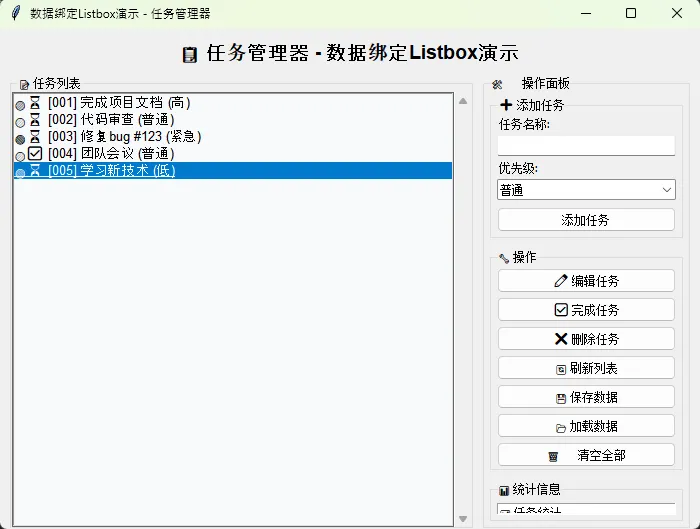
📊 数据绑定与动态更新
Pythonclass DataBoundListbox:
    """数据绑定的Listbox"""

    def __init__(self, parent):
        self.listbox = tk.Listbox(parent)
        self.data_model = []
        self.update_callbacks = []

    def bind_data(self, data_list):
        """绑定数据源"""
        self.data_model = data_list
        self.refresh_display()

    def add_item(self, item):
        """添加项目并自动更新显示"""
        self.data_model.append(item)
        self.listbox.insert(tk.END, str(item))
        self.trigger_update_callbacks()

    def remove_selected(self):
        """删除选中项目"""
        selection = self.listbox.curselection()
        if selection:
            index = selection[0]
            del self.data_model[index]
            self.listbox.delete(index)
            self.trigger_update_callbacks()

    def on_data_changed(self, callback):
        """注册数据变更回调"""
        self.update_callbacks.append(callback)

    def trigger_update_callbacks(self):
        """触发更新回调"""
        for callback in self.update_callbacks:
            callback(self.data_model)
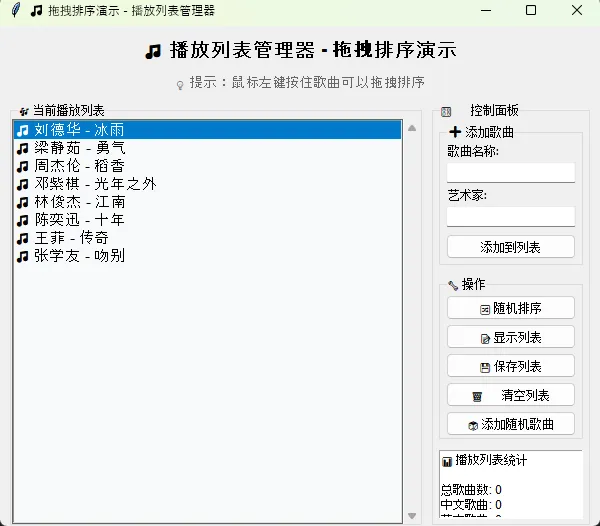
🎯 拖拽排序功能
Pythonimport tkinter as tk
from tkinter import ttk, messagebox


class DragDropListbox:
    """支持拖拽排序的Listbox"""

    def __init__(self, parent):
        # 创建主框架
        self.frame = ttk.Frame(parent)
        self.frame.pack(fill=tk.BOTH, expand=True)

        # 拖拽相关变量
        self.drag_start_index = None
        self.drag_data = []

        # 创建UI组件
        self.setup_widgets()

        # 设置拖拽功能
        self.setup_drag_drop()

    def setup_widgets(self):
        """设置界面组件"""
        # 创建Listbox和滚动条
        listbox_frame = ttk.Frame(self.frame)
        listbox_frame.pack(fill=tk.BOTH, expand=True)

        self.listbox = tk.Listbox(
            listbox_frame,
            font=('Arial', 11),
            selectmode=tk.SINGLE,
            bg='#f8f9fa',
            selectbackground='#007acc',
            selectforeground='white',
            activestyle='none'  # 禁用活动样式,避免干扰拖拽显示
        )

        scrollbar = ttk.Scrollbar(listbox_frame, orient=tk.VERTICAL)
        self.listbox.config(yscrollcommand=scrollbar.set)
        scrollbar.config(command=self.listbox.yview)

        # 布局
        self.listbox.pack(side=tk.LEFT, fill=tk.BOTH, expand=True)
        scrollbar.pack(side=tk.RIGHT, fill=tk.Y)

    def setup_drag_drop(self):
        """设置拖拽排序功能"""
        self.drag_start_index = None
        self.original_bg = self.listbox.cget('bg')

        # 绑定鼠标事件
        self.listbox.bind('<Button-1>', self.on_drag_start)
        self.listbox.bind('<B1-Motion>', self.on_drag_motion)
        self.listbox.bind('<ButtonRelease-1>', self.on_drag_end)

        # 绑定鼠标进入/离开事件,用于视觉反馈
        self.listbox.bind('<Enter>', self.on_mouse_enter)
        self.listbox.bind('<Leave>', self.on_mouse_leave)

    def on_drag_start(self, event):
        """开始拖拽"""
        # 获取点击位置的索引
        self.drag_start_index = self.listbox.nearest(event.y)

        # 确保索引有效
        if 0 <= self.drag_start_index < self.listbox.size():
            # 选中起始项
            self.listbox.selection_clear(0, tk.END)
            self.listbox.selection_set(self.drag_start_index)

            # 保存原始数据用于回滚
            self.drag_data = [self.listbox.get(i) for i in range(self.listbox.size())]

            # 改变鼠标指针
            self.listbox.config(cursor='hand2')
        else:
            self.drag_start_index = None

    def on_drag_motion(self, event):
        """拖拽过程中"""
        if self.drag_start_index is None:
            return

        # 获取当前鼠标位置对应的索引
        current_index = self.listbox.nearest(event.y)

        # 确保索引有效
        if 0 <= current_index < self.listbox.size():
            # 高亮显示目标位置
            self.listbox.selection_clear(0, tk.END)
            self.listbox.selection_set(current_index)

            # 如果位置发生变化,进行实时排序预览
            if current_index != self.drag_start_index:
                self.preview_move(self.drag_start_index, current_index)

    def preview_move(self, from_index, to_index):
        """预览移动效果"""
        if from_index == to_index:
            return

        # 获取要移动的项目
        item = self.drag_data[from_index]

        # 创建新的排序预览
        preview_data = self.drag_data.copy()
        preview_data.pop(from_index)
        preview_data.insert(to_index, item)

        # 更新显示
        self.listbox.delete(0, tk.END)
        for item in preview_data:
            self.listbox.insert(tk.END, item)

        # 高亮目标位置
        self.listbox.selection_set(to_index)

    def on_drag_end(self, event):
        """结束拖拽"""
        # 恢复鼠标指针
        self.listbox.config(cursor='')

        if self.drag_start_index is None:
            return

        # 获取最终位置
        end_index = self.listbox.nearest(event.y)

        # 确保索引有效
        if 0 <= end_index < self.listbox.size() and end_index != self.drag_start_index:
            # 执行最终的移动操作
            self.move_item(self.drag_start_index, end_index)

            # 选中移动后的项目
            self.listbox.selection_clear(0, tk.END)
            self.listbox.selection_set(end_index)

            # 触发移动完成回调
            self.on_item_moved(self.drag_start_index, end_index)
        else:
            # 如果没有移动,恢复原始状态
            self.restore_original_order()

        # 重置拖拽状态
        self.drag_start_index = None
        self.drag_data = []

    def move_item(self, from_index, to_index):
        """移动项目到新位置"""
        if from_index == to_index:
            return

        # 获取所有项目
        items = [self.listbox.get(i) for i in range(self.listbox.size())]

        # 执行移动
        item = items.pop(from_index)
        items.insert(to_index, item)

        # 更新显示
        self.listbox.delete(0, tk.END)
        for item in items:
            self.listbox.insert(tk.END, item)

    def restore_original_order(self):
        """恢复原始顺序"""
        if self.drag_data:
            self.listbox.delete(0, tk.END)
            for item in self.drag_data:
                self.listbox.insert(tk.END, item)

    def on_mouse_enter(self, event):
        """鼠标进入"""
        self.listbox.config(bg='#f0f8ff')  # 浅蓝色背景提示可拖拽

    def on_mouse_leave(self, event):
        """鼠标离开"""
        if self.drag_start_index is None:  # 只有在非拖拽状态下才恢复
            self.listbox.config(bg=self.original_bg)

    def on_item_moved(self, from_index, to_index):
        """项目移动完成回调 - 子类可重写"""
        pass

    def add_item(self, item):
        """添加项目"""
        self.listbox.insert(tk.END, item)

    def get_all_items(self):
        """获取所有项目"""
        return [self.listbox.get(i) for i in range(self.listbox.size())]

    def set_items(self, items):
        """设置所有项目"""
        self.listbox.delete(0, tk.END)
        for item in items:
            self.listbox.insert(tk.END, item)


class PlaylistManager:
    """播放列表管理器演示"""

    def __init__(self):
        self.root = tk.Tk()
        self.root.title("🎵 拖拽排序演示 - 播放列表管理器")
        self.root.geometry("600x500")

        self.setup_ui()
        self.load_sample_playlist()

    def setup_ui(self):
        """设置用户界面"""
        # 标题
        title_label = ttk.Label(
            self.root,
            text="🎵 播放列表管理器 - 拖拽排序演示",
            font=('Arial', 14, 'bold')
        )
        title_label.pack(pady=10)

        # 提示信息
        hint_label = ttk.Label(
            self.root,
            text="💡 提示:鼠标左键按住歌曲可以拖拽排序",
            font=('Arial', 10),
            foreground='#666666'
        )
        hint_label.pack(pady=(0, 10))

        # 主要内容区域
        main_frame = ttk.Frame(self.root)
        main_frame.pack(fill=tk.BOTH, expand=True, padx=10)

        # 左侧:播放列表
        left_frame = ttk.LabelFrame(main_frame, text="🎶 当前播放列表")
        left_frame.pack(side=tk.LEFT, fill=tk.BOTH, expand=True, padx=(0, 5))

        # 创建支持拖拽的Listbox
        self.playlist = CustomDragDropListbox(left_frame)

        # 右侧:控制面板
        self.setup_control_panel(main_frame)

        # 底部:状态栏
        self.status_var = tk.StringVar(value="就绪")
        status_bar = ttk.Label(self.root, textvariable=self.status_var, relief=tk.SUNKEN)
        status_bar.pack(side=tk.BOTTOM, fill=tk.X)

    def setup_control_panel(self, parent):
        """设置控制面板"""
        control_frame = ttk.LabelFrame(parent, text="🎛️ 控制面板")
        control_frame.pack(side=tk.RIGHT, fill=tk.Y, padx=(5, 0))

        # 添加歌曲区域
        add_frame = ttk.LabelFrame(control_frame, text="➕ 添加歌曲")
        add_frame.pack(fill=tk.X, padx=5, pady=5)

        ttk.Label(add_frame, text="歌曲名称:").pack(anchor=tk.W, padx=5)
        self.song_name_var = tk.StringVar()
        song_entry = ttk.Entry(add_frame, textvariable=self.song_name_var, width=20)
        song_entry.pack(fill=tk.X, padx=5, pady=2)

        ttk.Label(add_frame, text="艺术家:").pack(anchor=tk.W, padx=5)
        self.artist_var = tk.StringVar()
        artist_entry = ttk.Entry(add_frame, textvariable=self.artist_var, width=20)
        artist_entry.pack(fill=tk.X, padx=5, pady=2)

        add_btn = ttk.Button(add_frame, text="添加到列表", command=self.add_song)
        add_btn.pack(fill=tk.X, padx=5, pady=5)

        # 绑定回车键
        song_entry.bind('<Return>', lambda e: self.add_song())
        artist_entry.bind('<Return>', lambda e: self.add_song())

        # 操作按钮
        btn_frame = ttk.LabelFrame(control_frame, text="🔧 操作")
        btn_frame.pack(fill=tk.X, padx=5, pady=5)

        buttons = [
            ("🔀 随机排序", self.shuffle_playlist),
            ("📝 显示列表", self.show_playlist),
            ("💾 保存列表", self.save_playlist),
            ("🗑️ 清空列表", self.clear_playlist),
            ("🎲 添加随机歌曲", self.add_random_songs)
        ]

        for text, command in buttons:
            btn = ttk.Button(btn_frame, text=text, command=command, width=18)
            btn.pack(fill=tk.X, padx=5, pady=2)

        # 统计信息
        self.info_text = tk.Text(control_frame, height=8, width=20, font=('Arial', 9))
        self.info_text.pack(fill=tk.BOTH, expand=True, padx=5, pady=5)

        self.update_info()

    def load_sample_playlist(self):
        """加载示例播放列表"""
        sample_songs = [
            "🎵 周杰伦 - 稻香",
            "🎵 邓紫棋 - 光年之外",
            "🎵 林俊杰 - 江南",
            "🎵 陈奕迅 - 十年",
            "🎵 王菲 - 传奇",
            "🎵 张学友 - 吻别",
            "🎵 刘德华 - 冰雨",
            "🎵 梁静茹 - 勇气"
        ]

        self.playlist.set_items(sample_songs)
        self.status_var.set(f"已加载 {len(sample_songs)} 首歌曲")

    def add_song(self):
        """添加新歌曲"""
        song_name = self.song_name_var.get().strip()
        artist = self.artist_var.get().strip()

        if not song_name:
            messagebox.showwarning("警告", "请输入歌曲名称")
            return

        if not artist:
            artist = "未知艺术家"

        # 格式化歌曲信息
        song_info = f"🎵 {artist} - {song_name}"

        # 添加到播放列表
        self.playlist.add_item(song_info)

        # 清空输入框
        self.song_name_var.set("")
        self.artist_var.set("")

        # 更新信息
        self.update_info()
        self.status_var.set(f"已添加: {song_info}")

    def shuffle_playlist(self):
        """随机排序播放列表"""
        import random

        items = self.playlist.get_all_items()
        if len(items) < 2:
            messagebox.showinfo("提示", "播放列表歌曲太少,无法随机排序")
            return

        random.shuffle(items)
        self.playlist.set_items(items)

        self.update_info()
        self.status_var.set("播放列表已随机排序")

    def show_playlist(self):
        """显示当前播放列表"""
        items = self.playlist.get_all_items()

        if not items:
            messagebox.showinfo("播放列表", "播放列表为空")
            return

        # 创建显示窗口
        display_window = tk.Toplevel(self.root)
        display_window.title("当前播放列表")
        display_window.geometry("400x300")
        display_window.transient(self.root)

        # 显示内容
        text_widget = tk.Text(display_window, font=('Arial', 10))
        scrollbar = ttk.Scrollbar(display_window, orient=tk.VERTICAL, command=text_widget.yview)
        text_widget.config(yscrollcommand=scrollbar.set)

        text_widget.pack(side=tk.LEFT, fill=tk.BOTH, expand=True)
        scrollbar.pack(side=tk.RIGHT, fill=tk.Y)

        # 插入播放列表内容
        playlist_text = "🎶 当前播放列表:\n\n"
        for i, song in enumerate(items, 1):
            playlist_text += f"{i:2d}. {song}\n"

        text_widget.insert(1.0, playlist_text)
        text_widget.config(state=tk.DISABLED)

    def save_playlist(self):
        """保存播放列表"""
        items = self.playlist.get_all_items()

        if not items:
            messagebox.showwarning("警告", "播放列表为空,无法保存")
            return

        try:
            with open("playlist.txt", "w", encoding="utf-8") as f:
                f.write("# 播放列表\n\n")
                for i, song in enumerate(items, 1):
                    f.write(f"{i}. {song}\n")

            messagebox.showinfo("成功", f"播放列表已保存到 playlist.txt\n共 {len(items)} 首歌曲")
            self.status_var.set("播放列表已保存")
        except Exception as e:
            messagebox.showerror("错误", f"保存失败: {str(e)}")

    def clear_playlist(self):
        """清空播放列表"""
        items = self.playlist.get_all_items()

        if not items:
            messagebox.showinfo("提示", "播放列表已经为空")
            return

        result = messagebox.askyesno("确认清空", f"确定要清空播放列表吗?\n\n当前有 {len(items)} 首歌曲")
        if result:
            self.playlist.set_items([])
            self.update_info()
            self.status_var.set("播放列表已清空")

    def add_random_songs(self):
        """添加随机歌曲"""
        import random

        random_songs = [
            ("Taylor Swift", "Shake It Off"),
            ("Ed Sheeran", "Shape of You"),
            ("Adele", "Hello"),
            ("Bruno Mars", "Uptown Funk"),
            ("Billie Eilish", "Bad Guy"),
            ("The Weeknd", "Blinding Lights"),
            ("Dua Lipa", "Levitating"),
            ("Post Malone", "Circles")
        ]

        # 随机选择2-4首歌
        selected = random.sample(random_songs, random.randint(2, 4))

        for artist, song in selected:
            song_info = f"🎵 {artist} - {song}"
            self.playlist.add_item(song_info)

        self.update_info()
        self.status_var.set(f"已添加 {len(selected)} 首随机歌曲")

    def update_info(self):
        """更新信息显示"""
        items = self.playlist.get_all_items()
        total_songs = len(items)

        # 统计不同类型
        chinese_songs = sum(
            1 for song in items if any(char in song for char in "周杰伦邓紫棋林俊杰陈奕迅王菲张学友刘德华梁静茹"))
        english_songs = total_songs - chinese_songs

        info_text = f"""📊 播放列表统计

总歌曲数: {total_songs}
中文歌曲: {chinese_songs}
英文歌曲: {english_songs}

🎯 使用说明:
• 拖拽歌曲可排序
• 双击查看详情
• 支持批量操作

💡 提示:
拖拽时会实时预览
排序效果,松开鼠标
完成排序操作。
"""

        self.info_text.delete(1.0, tk.END)
        self.info_text.insert(1.0, info_text)

    def run(self):
        """运行程序"""
        self.root.mainloop()


class CustomDragDropListbox(DragDropListbox):
    """自定义的拖拽Listbox,添加了移动完成回调"""

    def __init__(self, parent):
        super().__init__(parent)

        # 绑定双击事件
        self.listbox.bind('<Double-1>', self.on_double_click)

    def on_item_moved(self, from_index, to_index):
        """项目移动完成回调"""
        # 可以在这里添加移动完成后的处理逻辑
        print(f"歌曲从位置 {from_index + 1} 移动到位置 {to_index + 1}")

        # 如果有父窗口,更新其信息显示
        parent_window = self.frame.winfo_toplevel()
        if hasattr(parent_window, 'update_info'):
            parent_window.children['!playlistmanager'].update_info()

    def on_double_click(self, event):
        """双击事件处理"""
        selection = self.listbox.curselection()
        if selection:
            index = selection[0]
            song = self.listbox.get(index)

            messagebox.showinfo(
                "歌曲信息",
                f"位置: 第 {index + 1} 首\n歌曲: {song}\n\n双击可以播放这首歌曲"
            )


# 运行演示程序
if __name__ == "__main__":
    app = PlaylistManager()
    app.run()
🛠️ 常见问题解决方案
❓ 中文显示问题
Python# 解决中文字体显示问题
import tkinter.font as tkFont

# 获取系统支持的中文字体
chinese_fonts = ['Microsoft YaHei', '微软雅黑', 'SimHei', '黑体']
available_font = None

for font_name in chinese_fonts:
    if font_name in tkFont.families():
        available_font = font_name
        break

if available_font:
    self.listbox.config(font=(available_font, 12))
else:
    self.listbox.config(font=('TkDefaultFont', 12))
⚡ 内存优化
Pythondef clear_listbox_efficiently(self):
    """高效清空Listbox"""
    # 避免逐项删除,直接清空更高效
    self.listbox.delete(0, tk.END)

    # 如果有大量数据,考虑分批处理
    if hasattr(self, 'large_data'):
        del self.large_data
        self.large_data = []
🎊 总结与展望
通过本文的详细解析和实战演练,我们深入掌握了Python Tkinter Listbox控件的核心应用技巧。
🔑 三个关键要点:
- 灵活配置:合理设置selectmode、字体和颜色,打造专业界面体验
- 事件处理:充分利用双击、选择变更等事件,实现丰富的交互功能
- 性能优化:面对大量数据时,采用虚拟化和分批处理策略,保证应用响应速度
在实际的Python开发项目中,Listbox不仅是数据展示的利器,更是构建用户友好界面的重要组成部分。无论是开发数据管理系统、文件处理工具,还是复杂的上位机软件,掌握这些实战技巧都将大大提升你的开发效率和产品质量。
随着Python在企业级应用中的广泛应用,深入理解GUI控件的使用方法已成为Python开发者的必备技能。继续关注我们的技术分享,让我们一起在Python开发的道路上不断精进,创造更多有价值的应用程序!
💡 想了解更多Python编程技巧?关注我们获取最新的实战教程和开发经验分享!
本文作者:技术老小子
本文链接:
版权声明:本博客所有文章除特别声明外,均采用 BY-NC-SA 许可协议。转载请注明出处!