SIFT简介
SIFT(Scale-Invariant Feature Transform,尺度不变特征变换)是由David Lowe在1999年提出的一种计算机视觉算法。它用于检测和描述图像中的局部特征,在图像处理和计算机视觉领域有着广泛的应用。
SIFT算法的主要目标是在不同的尺度空间中检测并表示图像的关键点。这些关键点具有高度的不变性,可以在图像旋转、缩放、亮度变化等情况下保持稳定。
SIFT的特点
- 尺度不变性:SIFT可以在不同尺度下检测和描述特征点,使其对图像缩放具有鲁棒性。
- 旋转不变性:SIFT特征对图像旋转不敏感,可以在旋转后的图像中找到相同的特征点。
- 光照不变性:对光照变化具有一定的适应能力,可以在不同光照条件下识别相同的特征。
- 视角不变性:在一定范围内的视角变化下,SIFT特征仍然可以被正确识别。
- 噪声抗干扰:对图像噪声有较强的抵抗能力。
- 独特性:SIFT生成的特征描述符具有高度的独特性,便于在大量特征中进行匹配。
- 多量性:一幅图像可以产生大量的SIFT特征向量。
SIFT在OpenCVSharp中的实现
OpenCVSharp是OpenCV的.NET封装,提供了在C#中使用OpenCV功能的便捷方式。在OpenCVSharp中,SIFT算法的实现主要通过SIFT类来完成。以下是使用SIFT的基本步骤:
- 创建SIFT对象
- 检测关键点
- 计算描述符
- 特征匹配(如果需要)
SIFT的应用场景
- 图像匹配:在大型图像数据库中查找相似图像。
- 物体识别:识别图像中的特定物体,即使物体经过旋转或缩放。
- 全景图像拼接:将多张重叠图像拼接成全景图。
- 3D重建:从多个2D图像重建3D场景。
- 运动跟踪:在视频序列中跟踪物体的运动。
- 机器人视觉:帮助机器人理解和导航环境。
- 增强现实:在实时视频流中添加虚拟元素。
OpenCVSharp中使用SIFT的详细示例
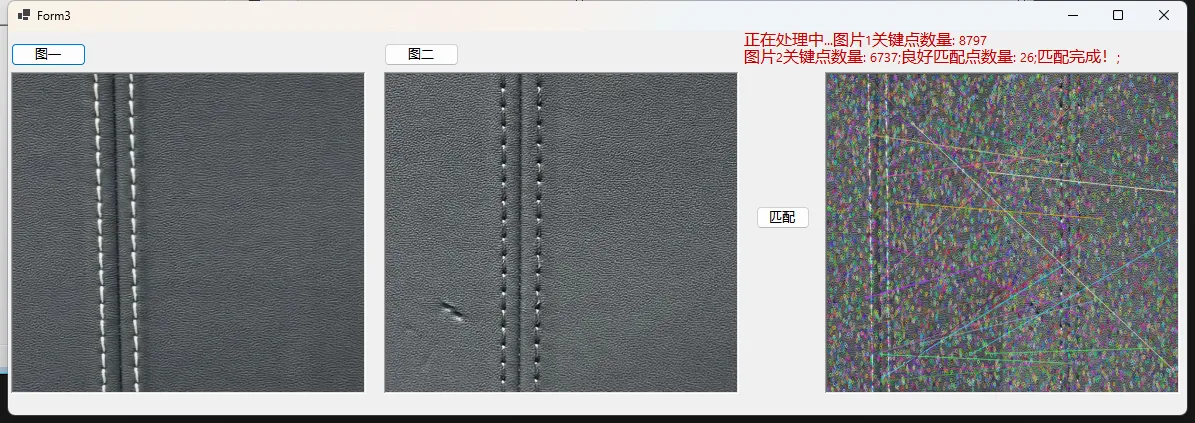
在本文中,我们将探讨如何使用OpenCvSharp库在C#的WinForms应用程序中实现轮廓匹配功能。轮廓匹配是计算机视觉中的一项重要技术,可用于识别和定位图像中的特定形状或物体。
应用程序概述
我们的WinForms应用程序允许用户选择两张图片:一张源图像和一张模板图像。程序会在源图像中查找与模板图像最相似的轮廓,并在结果图像中高亮显示匹配的轮廓。
主要功能包括:
- 选择源图像和模板图像
- 显示选择的图像
- 执行轮廓匹配
- 显示匹配结果和相似度
实现细节
1. 图像选择
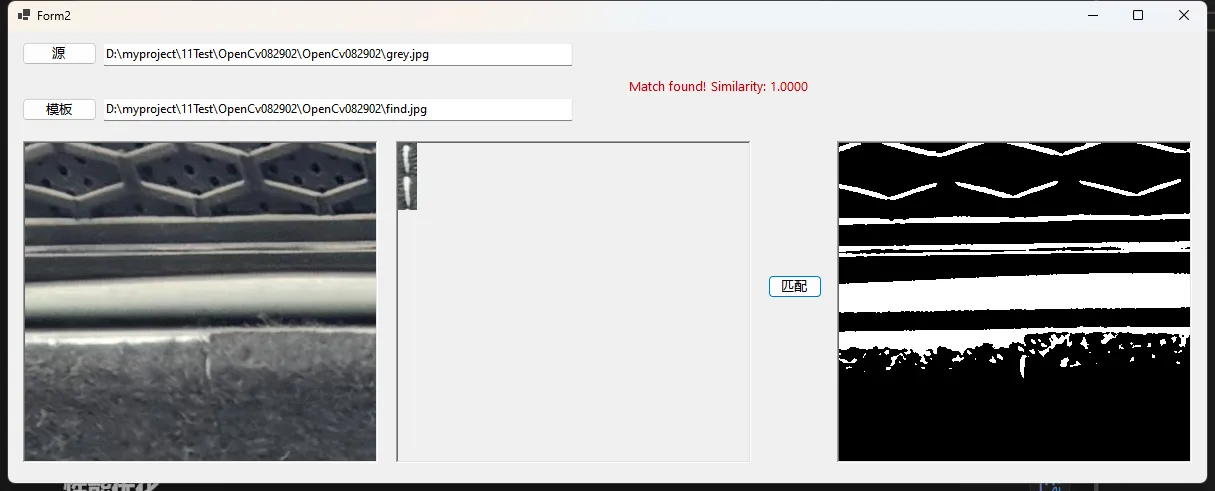
模板匹配是计算机视觉中一种常用的图像处理技术,用于在大图像中查找与模板图像相似的区域。本文将介绍如何使用 OpenCvSharp 库在 C# WinForms 应用程序中实现模板匹配功能。
1. 项目概述
我们将创建一个 WinForms 应用程序,允许用户选择源图像和模板图像,然后执行模板匹配操作。应用程序将显示匹配结果,包括在源图像上标记匹配位置和显示匹配置信度。
2. 环境设置
首先,确保您的项目中已安装以下 NuGet 包:
- OpenCvSharp4
- OpenCvSharp4.runtime.win
- OpenCvSharp4.Extensions (这里有可能需要更新新的System.Drawing.Common)
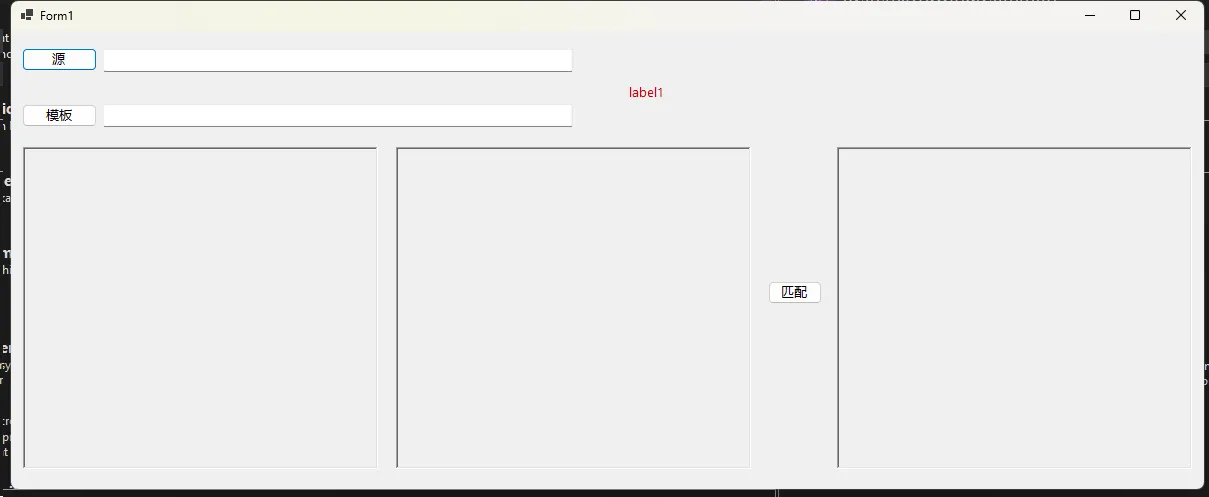
3. 用户界面设计
简介
轮廓检测是计算机视觉中的一项基本技术,用于识别图像中物体的边界。在OpenCvSharp中,我们可以使用多种方法来实现轮廓检测。本文将详细介绍如何使用OpenCvSharp进行轮廓检测,并提供多个实际示例。
基本概念
在OpenCvSharp中,轮廓是由图像中连续的点(边界点)组成的曲线,代表物体的形状。轮廓检测通常在二值图像上进行,因此在检测之前,我们通常需要对图像进行预处理。
轮廓检测的基本步骤
- 图像预处理(灰度化、二值化)
- 边缘检测
- 轮廓查找
- 轮廓分析和绘制
让我们通过代码示例来详细了解每个步骤。
代码示例
1. 基本轮廓检测
C#using OpenCvSharp;
using System;
using System.Linq;

class Program
{
    static void Main()
    {
        // 读取图像
        using var src = new Mat("1.jpg", ImreadModes.Color);
        using var gray = new Mat();
        using var binary = new Mat();

        // 转换为灰度图像
        Cv2.CvtColor(src, gray, ColorConversionCodes.BGR2GRAY);

        // 应用高斯模糊以减少噪声
        Cv2.GaussianBlur(gray, gray, new Size(5, 5), 0);

        // 使用自适应阈值进行二值化
        Cv2.AdaptiveThreshold(gray, binary, 255, AdaptiveThresholdTypes.GaussianC, ThresholdTypes.Binary, 11, 2);

        // 查找轮廓
        Point[][] contours;
        HierarchyIndex[] hierarchy;
        Cv2.FindContours(binary, out contours, out hierarchy, RetrievalModes.Tree, ContourApproximationModes.ApproxSimple);

        // 创建src的副本用于绘制轮廓
        using var result = src.Clone();

        // 绘制轮廓
        for (int i = 0; i < contours.Length; i++)
        {
            // 只绘制面积大于某个阈值的轮廓
            if (Cv2.ContourArea(contours[i]) > 100)
            {
                Cv2.DrawContours(result, contours, i, Scalar.RandomColor(), 2);
            }
        }

        // 显示结果
        Cv2.ImShow("Contours", result);
        Cv2.WaitKey(0);
    }
}
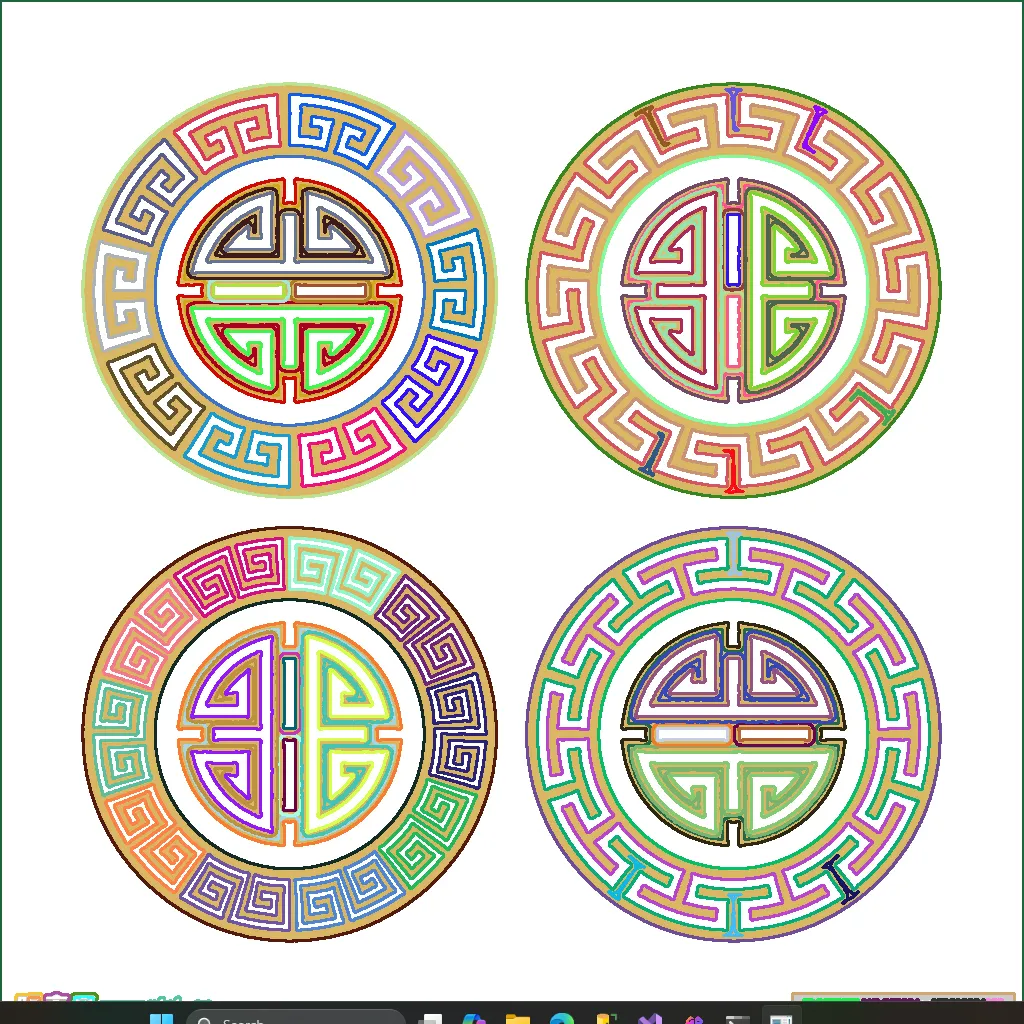
腐蚀是图像处理中的一种基本形态学操作,在文本分割中有着重要应用。本文将详细介绍如何使用OpenCvSharp库在C#中实现腐蚀操作,并通过多个例子展示其在文本分割中的应用。
1. 基本概念
腐蚀操作的基本思想是将图像中的物体边界腐蚀掉,即缩小前景物体的面积。在文本图像中,这可以帮助我们分离相连的字符或去除小的噪点。
2. OpenCvSharp中的腐蚀操作
在OpenCvSharp中,我们主要使用Cv2.Erode()方法来进行腐蚀操作。以下是该方法的基本语法:
C#Cv2.Erode(InputArray src, OutputArray dst, InputArray kernel, Point? anchor = null, int iterations = 1, BorderTypes borderType = BorderTypes.Constant, Scalar? borderValue = null)
参数说明:
src: 输入图像dst: 输出图像kernel: 腐蚀操作的核(结构元素)anchor: 锚点,默认为核的中心iterations: 腐蚀的次数borderType: 边界类型borderValue: 边界值
3. 实例: 基本腐蚀操作
让我们从一个简单的例子开始,展示如何对文本图像进行基本的腐蚀操作:
C#static void Main(string[] args)
{
    // 读取图像
    Mat image = Cv2.ImRead("011eaae7b2c300b05a_b.jpg", ImreadModes.Grayscale);
    if (image.Empty())
    {
        Console.WriteLine("无法加载图像!");
        return;
    }

    // 创建结构元素
    using var kernel = Cv2.GetStructuringElement(MorphShapes.Rect, new Size(3, 3));

    using var dst = new Mat();
    // 进行腐蚀操作
    Cv2.Erode(image, dst, kernel, iterations: 1);

    using (new Window("原始图像", image))
    using (new Window("腐蚀后", dst))
    {
        Cv2.WaitKey();
    }
}