
目录
引言
在游戏和图形应用开发中,精灵(Sprite)旋转是一个常见且基础的动画效果。本文将详细分析一个使用SkiaSharp在Windows Forms中实现精灵旋转动画的示例程序。SkiaSharp是Skia图形库的.NET绑定,提供了高性能的2D图形渲染能力,是实现复杂图形效果的理想选择。
技术栈概述
本示例使用了以下技术:
- Windows Forms:提供应用程序的窗体基础
- SkiaSharp:高性能2D图形渲染库
- SkiaSharp.Views.Desktop:将SkiaSharp集成到Windows Forms的控件
- C#:实现应用程序逻辑的编程语言
程序结构分析
窗体初始化
程序首先创建一个标题为"精灵旋转演示"的窗体,设置大小为800x600像素,背景为白色:
C#public Form5()
{
    InitializeComponent();
    this.Text = "精灵旋转演示";
    this.Size = new Size(800, 600);
    this.BackColor = Color.White;

    // 后续初始化代码...
}
SkiaSharp控件集成
程序创建一个SKControl控件并添加到窗体中,这是SkiaSharp提供的用于在Windows Forms中进行绘制的专用控件:
C#SKControl skControl = new SKControl();
skControl.Dock = DockStyle.Fill;
skControl.PaintSurface += OnPaintSurface;

// 启用高DPI支持
skControl.AllowDrop = true;

this.Controls.Add(skControl);
PaintSurface事件是SkiaSharp绘制图形的核心,程序将在OnPaintSurface方法中实现所有的绘制逻辑。
精灵图像创建
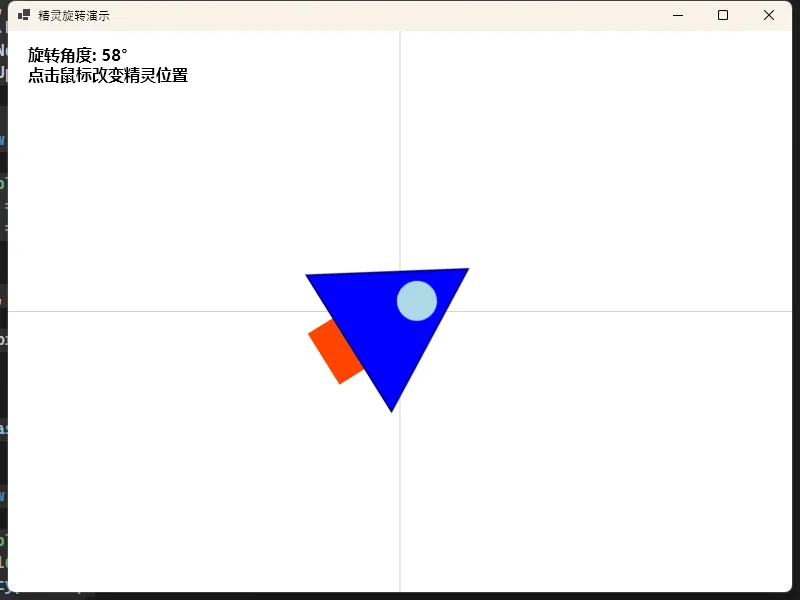
本示例通过代码动态创建了一个飞船形状的精灵,而不是加载外部图像:
C#private void LoadSprite()
{
    // 创建200x200像素的位图
    spriteBitmap = new SKBitmap(200, 200, SKColorType.Rgba8888, SKAlphaType.Premul);
    using (var canvas = new SKCanvas(spriteBitmap))
    {
        // 清除背景为透明
        canvas.Clear(SKColors.Transparent);

        // 绘制飞船主体(三角形)
        using (var paint = new SKPaint())
        {
            paint.IsAntialias = true;
            paint.FilterQuality = SKFilterQuality.High;
            paint.Color = SKColors.Blue;

            var path = new SKPath();
            path.MoveTo(100, 20);   // 顶点
            path.LineTo(20, 160);   // 左下角
            path.LineTo(180, 160);  // 右下角
            path.Close();

            canvas.DrawPath(path, paint);

            // 绘制其他飞船部件...
        }
    }
}
这段代码使用SkiaSharp的路径功能创建了一个三角形作为飞船主体,并添加了推进器和窗口等细节。值得注意的是,代码启用了抗锯齿和高质量过滤,确保图像在旋转时保持平滑。
动画实现
程序使用Windows Forms的Timer控件实现动画效果:
C#animationTimer = new Timer();
animationTimer.Interval = 16; // 约60 FPS
animationTimer.Tick += (sender, e) => {
    // 每帧旋转1度
    rotation = (rotation + 1) % 360;
    skControl.Invalidate(); // 请求重绘
};
animationTimer.Start();
每16毫秒(约60帧/秒)更新一次旋转角度,并通过调用Invalidate()方法触发控件重绘。
精灵渲染
精灵的渲染逻辑封装在RenderGameSprite方法中:
C#public void RenderGameSprite(SKCanvas canvas, SKBitmap spriteBitmap, float x, float y, float rotation)
{
    canvas.Save();

    // 移动到精灵位置
    canvas.Translate(x, y);

    // 旋转
    canvas.RotateDegrees(rotation);

    // 创建高质量绘制的画笔
    using (var paint = new SKPaint())
    {
        paint.IsAntialias = true;
        paint.FilterQuality = SKFilterQuality.High;

        // 绘制精灵 (居中)
        float halfWidth = spriteBitmap.Width / 2f;
        float halfHeight = spriteBitmap.Height / 2f;
        canvas.DrawBitmap(spriteBitmap, -halfWidth, -halfHeight, paint);
    }

    canvas.Restore();
}
这个方法展示了SkiaSharp的变换功能:
- 使用
canvas.Save()保存当前画布状态 - 通过
canvas.Translate()将坐标系原点移动到指定位置 - 使用
canvas.RotateDegrees()旋转坐标系 - 绘制精灵图像,注意将图像偏移负半宽和负半高,使其以中心点为旋转轴
- 使用
canvas.Restore()恢复画布状态
绘制事件处理
OnPaintSurface方法处理所有的绘制逻辑:
C#private void OnPaintSurface(object sender, SKPaintSurfaceEventArgs e)
{
    // 获取画布和信息
    SKCanvas canvas = e.Surface.Canvas;
    SKImageInfo info = e.Info;

    // 清除背景
    canvas.Clear(SKColors.White);

    // 加载支持中文的字体
    SKTypeface typeface = SKTypeface.FromFamilyName(
        "Microsoft YaHei",
        SKFontStyleWeight.Bold,
        SKFontStyleWidth.Normal,
        SKFontStyleSlant.Upright);

    // 绘制辅助线(十字准线)
    // ...

    // 绘制旋转的精灵
    RenderGameSprite(canvas, spriteBitmap, spriteX, spriteY, rotation);

    // 显示旋转角度信息
    // ...
}
这个方法首先清除画布,然后绘制辅助线、旋转精灵和文本信息。值得注意的是,程序特别加载了支持中文的"Microsoft YaHei"字体,以正确显示中文文本。
交互功能
程序还实现了鼠标交互,允许用户通过点击改变精灵位置:
C#skControl.MouseClick += (sender, e) => {
    spriteX = e.X;
    spriteY = e.Y;
    skControl.Invalidate();
};
当用户点击控件时,程序更新精灵位置并重绘界面。
资源管理
程序在窗体关闭时释放资源:
C#this.FormClosed += (sender, e) => {
    // 清理资源
    animationTimer.Stop();
    spriteBitmap.Dispose();
};
这确保了定时器停止和位图资源被正确释放。
完整代码
C#using System;
using System.Collections.Generic;
using System.ComponentModel;
using System.Data;
using System.Drawing;
using System.Linq;
using System.Text;
using System.Threading.Tasks;
using System.Windows.Forms;
using SkiaSharp;
using SkiaSharp.Views.Desktop;
using Timer = System.Windows.Forms.Timer;

namespace AppRotate
{
    public partial class Form5 : Form
    {
        private SKBitmap spriteBitmap;
        private float rotation = 0;
        private Timer animationTimer;
        private float spriteX;
        private float spriteY;

        public Form5()
        {
            InitializeComponent();
            // 窗体初始化设置
            this.Text = "精灵旋转演示";
            this.Size = new Size(800, 600);
            this.BackColor = Color.White;

            // 创建SKControl并添加到窗体
            SKControl skControl = new SKControl();
            skControl.Dock = DockStyle.Fill;
            skControl.PaintSurface += OnPaintSurface;

            // 启用高DPI支持
            skControl.AllowDrop = true;

            this.Controls.Add(skControl);

            // 加载精灵图像
            LoadSprite();

            // 初始化精灵位置为屏幕中心
            spriteX = this.ClientSize.Width / 2f;
            spriteY = this.ClientSize.Height / 2f;

            // 设置动画计时器
            animationTimer = new Timer();
            animationTimer.Interval = 16; // 约60 FPS
            animationTimer.Tick += (sender, e) => {
                // 每帧旋转1度
                rotation = (rotation + 1) % 360;
                skControl.Invalidate(); // 请求重绘
            };
            animationTimer.Start();

            // 处理鼠标点击事件以移动精灵
            skControl.MouseClick += (sender, e) => {
                spriteX = e.X;
                spriteY = e.Y;
                skControl.Invalidate();
            };

            // 处理窗体关闭事件
            this.FormClosed += (sender, e) => {
                // 清理资源
                animationTimer.Stop();
                spriteBitmap.Dispose();
            };
        }

        private void LoadSprite()
        {
            // 创建更大尺寸的精灵以提高清晰度
            spriteBitmap = new SKBitmap(200, 200, SKColorType.Rgba8888, SKAlphaType.Premul);
            using (var canvas = new SKCanvas(spriteBitmap))
            {
                // 清除背景为透明
                canvas.Clear(SKColors.Transparent);

                // 绘制一个简单的飞船形状
                using (var paint = new SKPaint())
                {
                    // 启用抗锯齿和高质量渲染
                    paint.IsAntialias = true;
                    paint.FilterQuality = SKFilterQuality.High;

                    // 绘制主体(三角形)
                    paint.Color = SKColors.Blue;

                    var path = new SKPath();
                    path.MoveTo(100, 20);   // 顶点
                    path.LineTo(20, 160);   // 左下角
                    path.LineTo(180, 160);   // 右下角
                    path.Close();

                    canvas.DrawPath(path, paint);

                    // 绘制推进器
                    paint.Color = SKColors.OrangeRed;
                    canvas.DrawRect(70, 160, 60, 30, paint);

                    // 绘制窗口
                    paint.Color = SKColors.LightBlue;
                    canvas.DrawCircle(100, 80, 20, paint);

                    // 添加边缘描边以增强清晰度
                    paint.Color = SKColors.DarkBlue;
                    paint.Style = SKPaintStyle.Stroke;
                    paint.StrokeWidth = 2;
                    canvas.DrawPath(path, paint);
                }
            }
        }

        // 渲染旋转的游戏精灵
        public void RenderGameSprite(SKCanvas canvas, SKBitmap spriteBitmap, float x, float y, float rotation)
        {
            canvas.Save();

            // 移动到精灵位置
            canvas.Translate(x, y);

            // 旋转
            canvas.RotateDegrees(rotation);

            // 创建高质量绘制的画笔
            using (var paint = new SKPaint())
            {
                paint.IsAntialias = true;
                paint.FilterQuality = SKFilterQuality.High;

                // 绘制精灵 (居中)
                float halfWidth = spriteBitmap.Width / 2f;
                float halfHeight = spriteBitmap.Height / 2f;
                canvas.DrawBitmap(spriteBitmap, -halfWidth, -halfHeight, paint);
            }

            canvas.Restore();
        }

        private void OnPaintSurface(object sender, SKPaintSurfaceEventArgs e)
        {
            // 获取画布和信息
            SKCanvas canvas = e.Surface.Canvas;
            SKImageInfo info = e.Info;

            // 清除背景并设置高质量渲染
            canvas.Clear(SKColors.White);

            // 加载支持中文的字体
            SKTypeface typeface = SKTypeface.FromFamilyName(
                "Microsoft YaHei",
                SKFontStyleWeight.Bold,
                SKFontStyleWidth.Normal,
                SKFontStyleSlant.Upright);

            // 绘制辅助线(十字准线)
            using (var paint = new SKPaint())
            {
                paint.Color = SKColors.LightGray;
                paint.StrokeWidth = 1;
                paint.IsAntialias = true;

                // 水平线
                canvas.DrawLine(0, spriteY, info.Width, spriteY, paint);
                // 垂直线
                canvas.DrawLine(spriteX, 0, spriteX, info.Height, paint);
            }

            // 绘制旋转的精灵
            RenderGameSprite(canvas, spriteBitmap, spriteX, spriteY, rotation);

            // 显示旋转角度信息
            using (var paint = new SKPaint())
            {
                paint.Color = SKColors.Black;
                paint.TextSize = 16;
                paint.Typeface = typeface;
                paint.IsAntialias = true;
                paint.SubpixelText = true; // 启用亚像素文本渲染
                canvas.DrawText($"旋转角度: {rotation}°", 20, 30, paint);
                canvas.DrawText("点击鼠标改变精灵位置", 20, 50, paint);
            }
        }
    }
}
技术要点总结
- 高质量渲染:通过启用抗锯齿和高质量过滤,确保图像在旋转时保持平滑
- 坐标变换:使用SkiaSharp的变换功能实现精灵旋转
- 性能优化:使用计时器控制帧率,实现流畅的动画效果
- 资源管理:正确释放不再需要的资源
- 用户交互:实现鼠标点击改变精灵位置的功能
- 国际化支持:加载支持中文的字体,确保文本正确显示
结论
这个示例展示了如何使用SkiaSharp在Windows Forms应用程序中实现精灵旋转动画。通过SkiaSharp的高性能2D图形渲染能力,即使是简单的Windows Forms应用也能实现流畅的游戏级图形效果。这为开发图形密集型应用程序提供了一个强大而灵活的解决方案。
SkiaSharp不仅限于Windows Forms,它还支持WPF、Xamarin和.NET MAUI等平台,使开发者能够在多种环境中使用相同的图形渲染代码,大大提高了代码的可复用性和开发效率。
本文作者:技术老小子
本文链接:
版权声明:本博客所有文章除特别声明外,均采用 BY-NC-SA 许可协议。转载请注明出处!