
引言
在现代应用程序开发中,MVVM(Model-View-ViewModel) 模式已成为构建可维护、可扩展和可测试应用程序的主流架构。微软的 CommunityToolkit.Mvvm(原名 Microsoft.Toolkit.Mvvm) 是一个轻量级且强大的库,旨在简化 MVVM 模式的实现。
在 MVVM 模式中,ObservableObject 基类是核心组件之一。它实现了 INotifyPropertyChanged 接口,用于通知视图属性的更改,从而更新 UI。本文将详细介绍 ObservableObject 基类的功能、用法,并通过 CMD(控制台应用程序)和 WinForms 下的示例,加深对其理解。
什么是 ObservableObject
ObservableObject 是一个抽象基类,位于 CommunityToolkit.Mvvm.ComponentModel 命名空间中。它实现了 INotifyPropertyChanged 接口,提供了属性更改通知的基础设施。
主要特性
- 简化属性通知:通过内置的方法,减少手动编写重复的通知代码。
- Source Generator 支持:利用 C# 的 Source Generator 特性,进一步减少样板代码。
- 与 MVVM 模式完美结合:在 ViewModel 中继承
ObservableObject,即可轻松实现数据绑定。
引言
随着软件应用的复杂性和用户界面的需求日益增长,传统的开发模式已难以满足高效开发和维护的需要。MVVM(Model-View-ViewModel)作为一种设计模式,提供了清晰的架构,解耦了界面和业务逻辑,提升了代码的可维护性和可测试性。本文将详细介绍 MVVM 设计模式,并结合 CommunityToolkit.Mvvm,在 WinForms 应用中演示其实际应用。
MVVM 设计模式概述
1. 什么是 MVVM?
MVVM 是一种架构设计模式,将应用程序分为三个核心组件:
- Model(模型):表示应用程序的业务逻辑和数据模型。
- View(视图):用户界面,负责数据的呈现和用户交互。
- ViewModel(视图模型):连接 View 和 Model 的桥梁,处理视图逻辑和命令。
2. MVVM 的优势
- 解耦:分离视图和业务逻辑,便于团队协作和代码维护。
- 数据绑定:实现视图和数据的双向绑定,减少手动更新界面的工作。
- 可测试性:业务逻辑集中在 ViewModel,使得单元测试更容易编写。
CommunityToolkit.Mvvm 简介
1. 什么是 CommunityToolkit.Mvvm?
CommunityToolkit.Mvvm 是微软提供的开源 MVVM 框架,轻量级且功能强大,旨在简化 MVVM 模式的实现。它提供了属性更改通知、命令、消息传递等常用功能。
2. 主要特性
ObservableObject:基类,实现了INotifyPropertyChanged接口,简化属性通知。RelayCommand:实现命令模式,方便处理用户交互事件。ObservableCollection:支持集合的变化通知。
在Python开发的日常工作中,你是否遇到过这样的困扰:项目在你的电脑上运行得好好的,但同事clone代码后却各种报错?或者你接手一个老项目,却不知道需要安装哪些依赖包?今天我们就来聊聊Python开发中的包管理利器——requirements.txt文件。
本文将从实际开发场景出发,详细介绍requirements.txt的作用原理、创建方法、管理技巧以及在团队协作中的最佳实践,帮你彻底掌握这个Python项目管理的核心工具。
🔍 问题分析:为什么需要requirements.txt?
💔 开发中的痛点场景
想象一个典型的场景:你花了几周时间开发了一个数据分析工具,用到了pandas、numpy、matplotlib等十几个第三方库。当你把代码分享给同事时,他们运行后却遇到了:
PythonModuleNotFoundError: No module named 'pandas'
ImportError: No module named 'requests'
更糟糕的是,即使安装了相同的包,版本不一致也可能导致代码行为异常。比如你用的是pandas 1.5.0,而同事安装的是pandas 2.0.0,API变更就可能导致代码报错。
作为一名Python开发者,你是否遇到过这样的困扰:刚装好的新库与旧项目产生冲突,或者在不同项目间切换时总是出现各种奇怪的导入错误?这些问题的根源往往在于缺乏有效的虚拟环境管理。
虚拟环境就像是为每个Python项目准备的独立"房间",让不同项目的依赖包互不干扰。本文将从实战角度出发,详细介绍两大主流虚拟环境管理工具:venv和conda,帮你彻底解决Python开发中的依赖管理难题。无论你是初学者还是有经验的开发者,这篇文章都将为你提供立即可用的解决方案。
🔍 问题分析:为什么需要虚拟环境?
💥 常见的依赖冲突场景
在Windows下进行Python开发时,我们经常会遇到以下问题:
- 版本冲突:项目A需要Django 3.2,项目B需要Django 4.1
- 全局污染:在系统Python环境中安装过多包,导致环境混乱
- 部署困难:本地开发环境与生产环境包版本不一致
Python# 典型的错误场景
# 项目A运行正常
import django
print(django.VERSION)  # (3, 2, 0, 'final', 0)

# 升级Django后,项目A报错
pip install django==4.1.0
# 项目A突然无法运行,因为代码不兼容新版本
🎯 虚拟环境的核心价值
虚拟环境通过创建隔离的Python运行环境,让每个项目都有独立的包管理空间,从根本上解决了依赖冲突问题。
💡 解决方案:两大虚拟环境管理工具
🔧 方案一:venv - Python内置的轻量级选择
📦 venv简介
venv是Python 3.3+内置的虚拟环境管理工具,无需额外安装,是最轻量级的选择。
🚀 venv实战操作
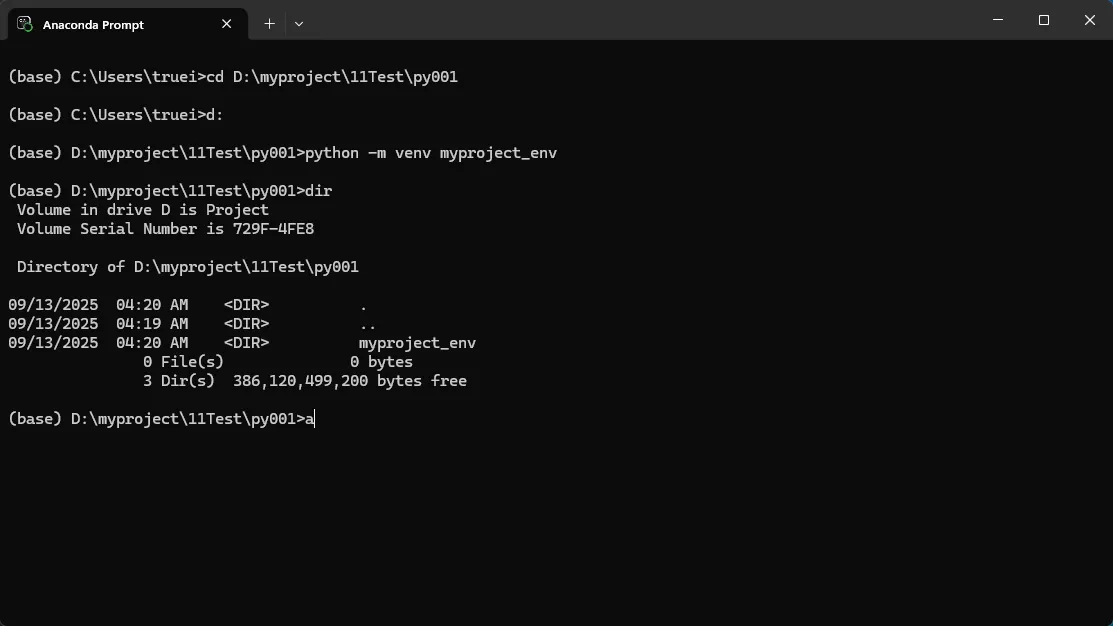
创建虚拟环境
Bash# 在项目根目录创建虚拟环境
python -m venv myproject_env
作为Python开发者,你是否曾经遇到过这些困扰:项目依赖包版本冲突、开发环境与生产环境不一致、第三方库安装失败?这些问题的根源往往在于对pip包管理器的理解和使用不够深入。本文将从实战角度出发,带你深入掌握pip的各种使用技巧,解决Python开发中的包管理难题,让你的开发效率翻倍提升。
🎯 pip包管理器核心问题分析
常见包管理痛点
在Python开发过程中,开发者经常面临以下问题:
- 依赖地狱:不同项目需要同一个库的不同版本
- 环境污染:全局安装包导致系统环境混乱
- 部署困难:本地能运行,服务器部署就报错
- 网络问题:默认源下载速度慢,经常超时失败
这些问题如果不妥善解决,将严重影响开发效率和项目稳定性。
🔧 pip基础操作与核心概念
pip安装与升级
Bash# 检查pip版本
pip --version

# 升级pip到最新版本
python -m pip install --upgrade pip

# Windows系统特定升级方法
python.exe -m pip install --upgrade pip