
目录
在C#图形编程领域,SkiaSharp作为.NET平台上的强大2D图形库,为开发者提供了丰富的图形处理能力。而旋转变换作为基础且常用的图形操作,在UI设计、动画效果和图像处理中扮演着重要角色。本文将深入探讨SkiaSharp中的旋转变换原理及实现方法,通过详细的代码示例帮助你掌握这一技能。
SkiaSharp简介
SkiaSharp是Google Skia图形引擎的C#/.NET绑定,提供跨平台的2D图形API。它被广泛应用于Xamarin.Forms、.NET MAUI、WPF等平台的图形渲染,支持矢量图形、文本渲染、图像处理等功能。
使用SkiaSharp需要安装以下NuGet包:
C#Install-Package SkiaSharp
Install-Package SkiaSharp.Views.WindowsForms
旋转变换基础知识
什么是旋转变换?
旋转变换是指将图形或图像围绕某个点按照指定角度进行旋转的过程。在SkiaSharp中,旋转通常围绕指定的原点进行,角度以顺时针方向为正。
数学原理
旋转变换在数学上通过旋转矩阵实现,这一操作可表示为:
Pythonx' = x·cos(θ) - y·sin(θ)
y' = x·sin(θ) + y·cos(θ)
其中,(x, y)是原始坐标,(x', y')是旋转后的坐标,θ是旋转角度。
SkiaSharp中实现旋转变换
基本方法:使用Canvas.RotateDegrees()
最直接的旋转方法是使用SKCanvas的RotateDegrees()或RotateRadians()方法:
C#using SkiaSharp.Views.Desktop;
using SkiaSharp;

namespace AppRotate
{
    public partial class Form1 : Form
    {
        public Form1()
        {
            InitializeComponent();
            SKControl skControl = new SKControl();
            skControl.Dock = DockStyle.Fill;
            skControl.PaintSurface += OnPaintSurface;
            Controls.Add(skControl);
        }
        private void OnPaintSurface(object sender, SKPaintSurfaceEventArgs e)
        {
            // 获取画布
            SKCanvas canvas = e.Surface.Canvas;

            // 清除背景
            canvas.Clear(SKColors.White);

            // 创建画笔
            using SKPaint paint = new SKPaint
            {
                Color = SKColors.Blue,
                StrokeWidth = 5,
                IsAntialias = true,
                Style = SKPaintStyle.Stroke
            };

            // 保存当前画布状态
            canvas.Save();

            // 执行旋转变换 (45度,围绕点(100, 100))
            canvas.Translate(100, 100);  // 移动原点到旋转中心
            canvas.RotateDegrees(45);    // 旋转45度
            canvas.Translate(-100, -100); // 移回原来位置

            // 绘制一个矩形
            canvas.DrawRect(50, 50, 100, 100, paint);

            // 恢复画布状态
            canvas.Restore();

            // 使用不同颜色绘制一个未旋转的矩形作为对比
            using SKPaint paint2 = new SKPaint
            {
                Color = SKColors.Red,
                StrokeWidth = 5,
                IsAntialias = true,
                Style = SKPaintStyle.Stroke
            };
            canvas.DrawRect(200, 50, 100, 100, paint2);
        }
    }
}
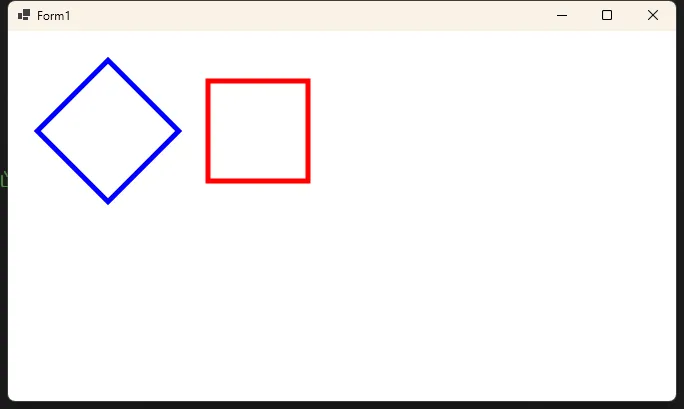
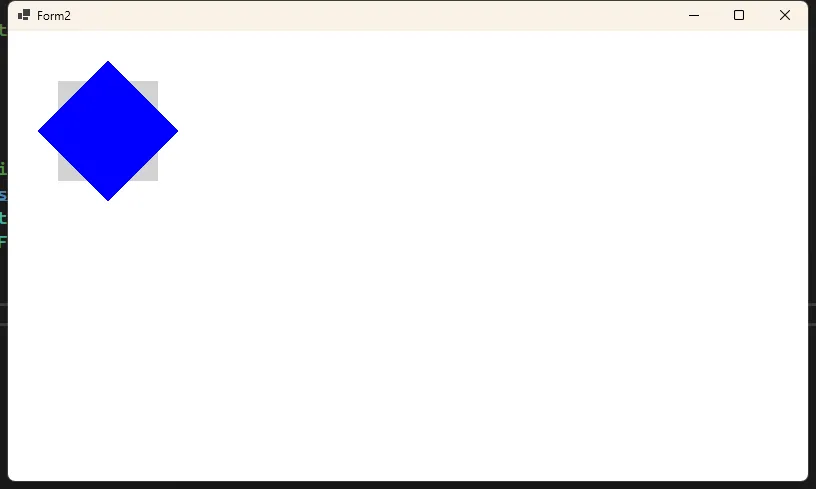
使用SKMatrix进行旋转
对于更复杂的变换或需要精确控制的场景,可以使用SKMatrix:
C#using System;
using System.Collections.Generic;
using System.ComponentModel;
using System.Data;
using System.Drawing;
using System.Linq;
using System.Text;
using System.Threading.Tasks;
using System.Windows.Forms;
using SkiaSharp;
using SkiaSharp.Views.Desktop;

namespace AppRotate
{
    public partial class Form2 : Form
    {
        public Form2()
        {
            InitializeComponent();
            // 创建 SKControl
            SKControl skControl = new SKControl();
            skControl.Dock = DockStyle.Fill;
            skControl.PaintSurface += OnPaintSurface;
            this.Controls.Add(skControl);
        }
        private void OnPaintSurface(object sender, SKPaintSurfaceEventArgs e)
        {
            // 获取画布和画布信息
            SKCanvas canvas = e.Surface.Canvas;
            SKImageInfo info = e.Info;

            // 清除画布
            canvas.Clear(SKColors.White);

            // 创建画笔
            using (SKPaint paint = new SKPaint())
            {
                paint.Color = SKColors.Blue;
                paint.Style = SKPaintStyle.Fill;

                // 画一个未旋转的矩形作为对比
                paint.Color = SKColors.LightGray;
                canvas.DrawRect(50, 50, 100, 100, paint);

                // 设置旋转矩形的颜色
                paint.Color = SKColors.Blue;

                // 创建一个矩阵执行旋转变换
                SKMatrix rotationMatrix = SKMatrix.CreateRotationDegrees(
                    45,           // 旋转角度(度)
                    100, 100      // 旋转中心点
                );

                // 保存当前画布状态
                canvas.Save();

                // 应用变换矩阵
                canvas.SetMatrix(rotationMatrix);

                // 绘制图形
                canvas.DrawRect(50, 50, 100, 100, paint);

                // 恢复画布状态
                canvas.Restore();
            }
        }
    }
}
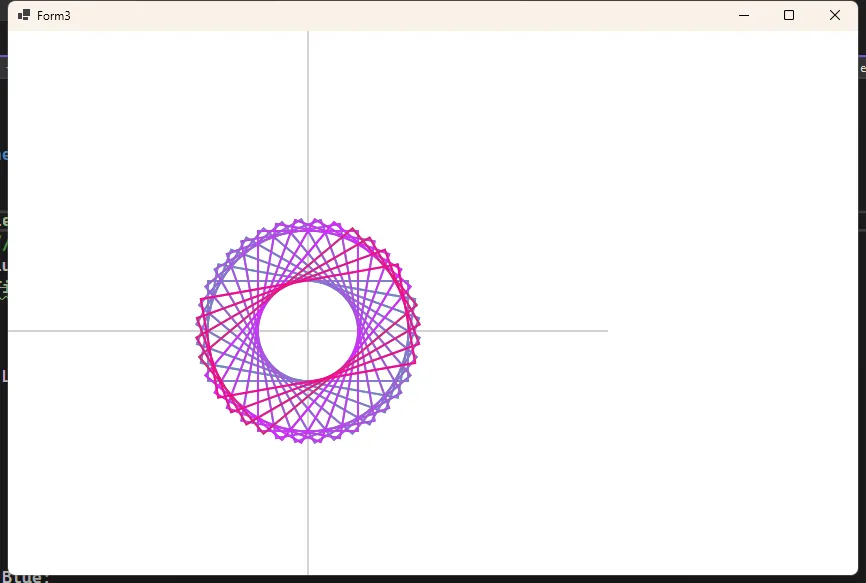
完整示例:多重旋转效果
下面是一个更完整的示例,展示了如何创建多个旋转的矩形,形成有趣的视觉效果:
C#using System;
using System.Collections.Generic;
using System.ComponentModel;
using System.Data;
using System.Drawing;
using System.Linq;
using System.Text;
using System.Threading.Tasks;
using System.Windows.Forms;
using SkiaSharp;
using SkiaSharp.Views.Desktop;

namespace AppRotate
{
    public partial class Form3 : Form
    {
        public Form3()
        {
            InitializeComponent();
            // 创建 SKControl
            SKControl skControl = new SKControl();
            skControl.Dock = DockStyle.Fill;
            skControl.PaintSurface += OnPaintSurface;
            this.Controls.Add(skControl);
        }
        private void OnPaintSurface(object sender, SKPaintSurfaceEventArgs e)
        {
            // 获取画布和画布信息
            SKCanvas canvas = e.Surface.Canvas;
            SKImageInfo info = e.Info;

            // 清除画布
            canvas.Clear(SKColors.White);


            // 创建画笔对象
            using SKPaint paint = new SKPaint
            {
                IsAntialias = true,  // 抗锯齿
                Style = SKPaintStyle.Stroke,  // 描边样式
                StrokeWidth = 2,  // 线条宽度
                Color = SKColors.Blue,  // 线条颜色
                FilterQuality = SKFilterQuality.High  // 滤波质量
            };

            // 绘制中心点参考线
            paint.Color = SKColors.LightGray;
            canvas.DrawLine(0, 300, 600, 300, paint);  // 水平线
            canvas.DrawLine(300, 0, 300, 600, paint);  // 垂直线

            // 中心点
            float centerX = 300;
            float centerY = 300;

            // 绘制36个旋转的矩形
            paint.Color = SKColors.Blue;
            paint.IsAntialias = true;
            for (int i = 0; i < 36; i++)
            {
                // 计算当前旋转角度
                float angle = i * 10;  // 每次旋转10度

                // 保存当前画布状态
                canvas.Save();

                // 创建旋转矩阵
                SKMatrix rotationMatrix = SKMatrix.CreateRotationDegrees(
                    angle,      // 旋转角度
                    centerX,    // 旋转中心X坐标
                    centerY     // 旋转中心Y坐标
                );

                // 应用变换
                canvas.SetMatrix(rotationMatrix);

                // 根据旋转角度改变颜色
                byte r = (byte)(i * 7 % 255);
                byte g = (byte)(255 - (i * 7 % 255));
                byte b = (byte)(127 + (i * 4 % 128));
                paint.Color = new SKColor(r, g, b);

                // 绘制矩形
                float rectWidth = 200;
                float rectHeight = 100;
                float left = centerX - rectWidth / 2;
                float top = centerY - rectHeight / 2;
                canvas.DrawRect(left, top, rectWidth, rectHeight, paint);

                // 恢复画布状态
                canvas.Restore();
            }
        }
    }
}
实际应用场景
3. 游戏开发中的精灵旋转
在游戏开发中,经常需要旋转精灵或游戏对象:
C#// 渲染旋转的游戏精灵
public void RenderGameSprite(SKCanvas canvas, SKBitmap spriteBitmap, float x, float y, float rotation)
{
    canvas.Save();

    // 移动到精灵位置
    canvas.Translate(x, y);

    // 旋转
    canvas.RotateDegrees(rotation);

    // 绘制精灵 (居中)
    float halfWidth = spriteBitmap.Width / 2f;
    float halfHeight = spriteBitmap.Height / 2f;
    canvas.DrawBitmap(spriteBitmap, -halfWidth, -halfHeight);

    canvas.Restore();
}
高级旋转变换技巧
1. 组合变换
旋转可以与其他变换(如缩放、平移)组合使用,创建更复杂的效果:
C#// 应用组合变换
canvas.Save();

// 先移动到中心点
canvas.Translate(centerX, centerY);

// 旋转45度
canvas.RotateDegrees(45);

// 缩放为原来的1.5倍
canvas.Scale(1.5f, 1.5f);

// 移回原位置
canvas.Translate(-centerX, -centerY);

// 绘制图形
canvas.DrawRect(rect, paint);

canvas.Restore();
2. 旋转动画
通过在每帧更新旋转角度,可以实现旋转动画:
C#private float currentAngle = 0;
private const float RotationSpeed = 2.0f; // 每帧旋转2度

public void Update(float deltaTime)
{
    // 更新旋转角度
    currentAngle += RotationSpeed * deltaTime;

    // 确保角度在0-360范围内
    if (currentAngle >= 360)
    {
        currentAngle -= 360;
    }
}

public void Draw(SKCanvas canvas)
{
    // 绘制旋转的图形
    canvas.Save();

    canvas.Translate(centerX, centerY);
    canvas.RotateDegrees(currentAngle);
    canvas.Translate(-centerX, -centerY);

    // 绘制图形
    // ...

    canvas.Restore();
}
性能优化建议
- 预计算矩阵:对于重复使用的相同旋转,预先计算变换矩阵并重用。
- 使用硬件加速:确保在可能的情况下使用GPU硬件加速。
- 限制画布状态改变:最小化
Save()和Restore()的调用次数。 - 合理使用裁剪:对不可见区域进行裁剪,减少绘制计算。
- 图层合并:在适当情况下,将多个旋转图层合并为一个位图,减少渲染开销。
总结
SkiaSharp中的旋转变换是一种强大且灵活的图形处理技术,在UI开发、图像处理和游戏开发中有广泛应用。本文详细介绍了旋转变换的基本原理、实现方法以及优化技巧,希望能帮助开发者在C#项目中充分利用SkiaSharp的旋转功能。
通过掌握这些技术,你可以创建更加动态和视觉吸引力的用户界面,提升应用程序的用户体验。无论是开发跨平台应用还是进行图形处理,SkiaSharp的旋转变换都是一个不可或缺的工具。
如果您对SkiaSharp中的旋转变换有任何问题或需要进一步的指导,欢迎在评论区留言讨论。别忘了关注我们的微信公众号,获取更多C#图形编程技巧和教程!
#SkiaSharp #C#图形编程 #旋转变换 #2D图形绘制 #.NET开发
本文作者:技术老小子
本文链接:
版权声明:本博客所有文章除特别声明外,均采用 BY-NC-SA 许可协议。转载请注明出处!