
目录
做过一个温控系统的维护工作,接手的时候差点没绷住——Form1.cs 足足 2300 行,btnStart_Click、btnStop_Click、btnExport_Click 密密麻麻,每个按钮里头都塞着一坨业务逻辑,改一个功能要翻半天,生怕动了哪根线把别的东西带崩。
这种代码,不是写出来的,是"堆"出来的。
后来我把这个项目用 [RelayCommand] 重构了一遍,Form 从 2300 行缩到不到 300 行,测试覆盖率从零提到 74%。今天就把这套东西拆开讲清楚,从原理到工业落地,一次说透。
🤔 事件驱动到底哪里"坏了"
先说清楚问题在哪。传统 WinForms 的写法,大概长这个样子:
csharpprivate void btnStart_Click(object sender, EventArgs e)
{
    if (!_isRunning)
    {
        _timer.Interval = (int)nudInterval.Value;
        _timer.Start();
        _isRunning = true;
        btnStart.Enabled = false;
        btnStop.Enabled  = true;
        lblStatus.Text   = "采集中...";
    }
}
看起来没什么问题对吧?但麻烦就藏在这几行里。业务状态(_isRunning)、UI 操作(btnStart.Enabled)、服务调用(_timer.Start())全部揉在一起,Form 既是界面,又是控制器,还是状态机。
想单元测试?没法测,因为逻辑依赖 UI 控件。想复用逻辑?没法复用,因为它跟 Form 死死绑着。想换个界面框架?——那就重写吧。
这不是某个人的问题,是这种写法天然的局限。
💡 命令模式:把"做什么"和"谁来触发"拆开
ICommand 接口其实挺老了,WPF 时代就有,但 WinForms 开发者用得少。它的核心思路就一句话:把操作封装成对象,让 UI 只负责触发,不负责实现。
按钮点击  →  Execute(command)  →  ViewModel 里的方法
                ↑
         CanExecute() 决定按钮灰不灰
UI 不再需要知道"点了之后干什么",只需要知道"有没有权限点"。这个权限——也就是 CanExecute——由 ViewModel 自己管,UI 监听结果就好。
干净。彻底。
🔧 [RelayCommand] 是怎么工作的
CommunityToolkit.Mvvm 把这套东西做到了极致简洁。你只需要在方法上贴一个特性:
csharp[RelayCommand(CanExecute = nameof(CanStartSampling))]
private void StartSampling()
{
    _timer.Interval = Interval;
    _timer.Start();
    IsRunning = true;
}

private bool CanStartSampling() => !IsRunning;
编译器(Source Generator)在后台帮你生成了这些:
csharp// 这段代码你不用写,编译器自动生成在 .g.cs 里
private RelayCommand? _startSamplingCommand;

public IRelayCommand StartSamplingCommand =>
    _startSamplingCommand ??=
        new RelayCommand(StartSampling, CanStartSampling);
零样板代码。不是"少写一点",是一个字都不用写。
更妙的是 [NotifyCanExecuteChangedFor],把它贴在属性上:
csharp[ObservableProperty]
[NotifyCanExecuteChangedFor(nameof(StartSamplingCommand))]
[NotifyCanExecuteChangedFor(nameof(StopSamplingCommand))]
private bool _isRunning;
IsRunning 一变,两个命令的 CanExecuteChanged 自动触发,按钮的 Enabled 状态跟着联动——整个过程,Form 里一行判断代码都不需要。
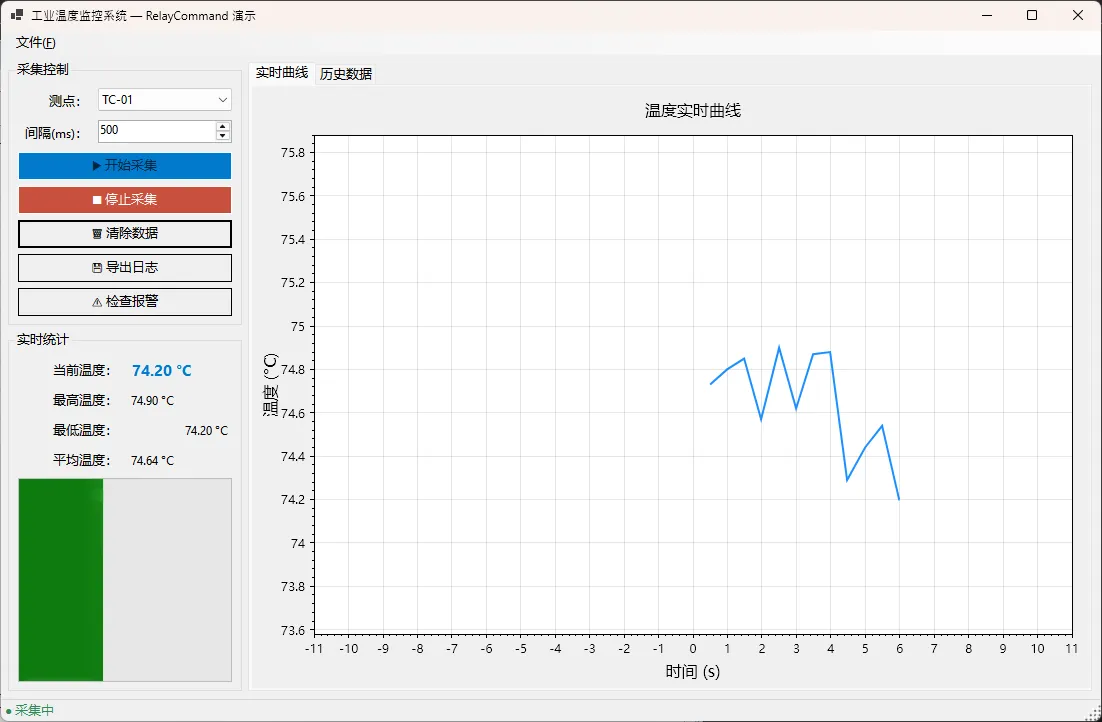
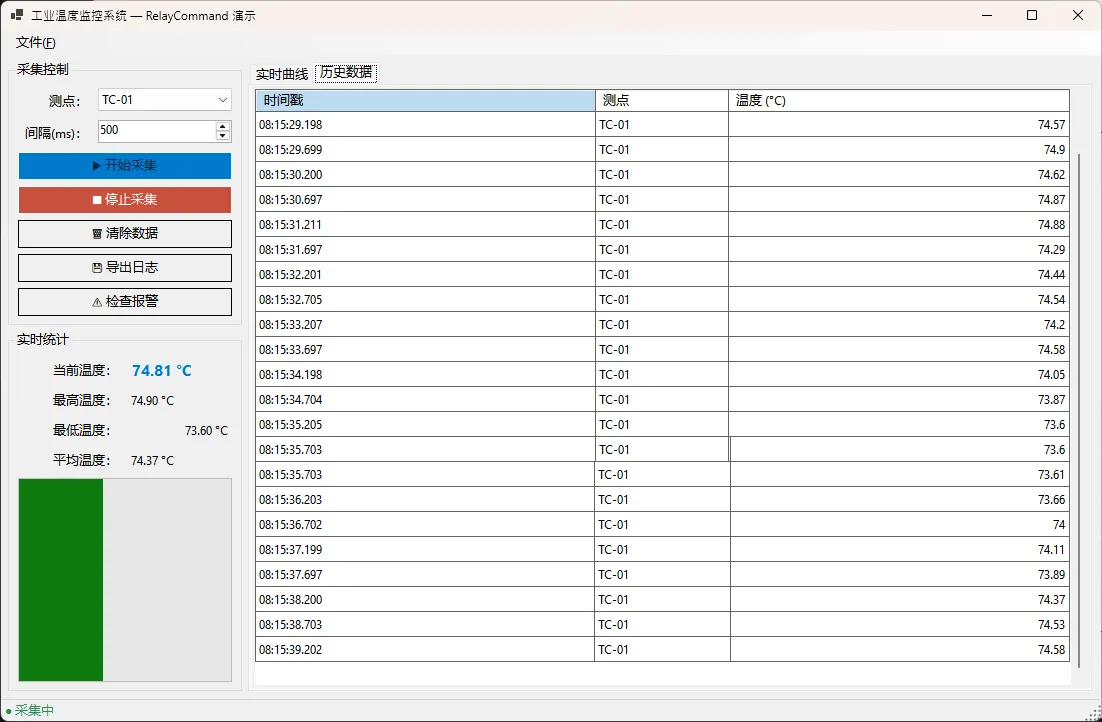
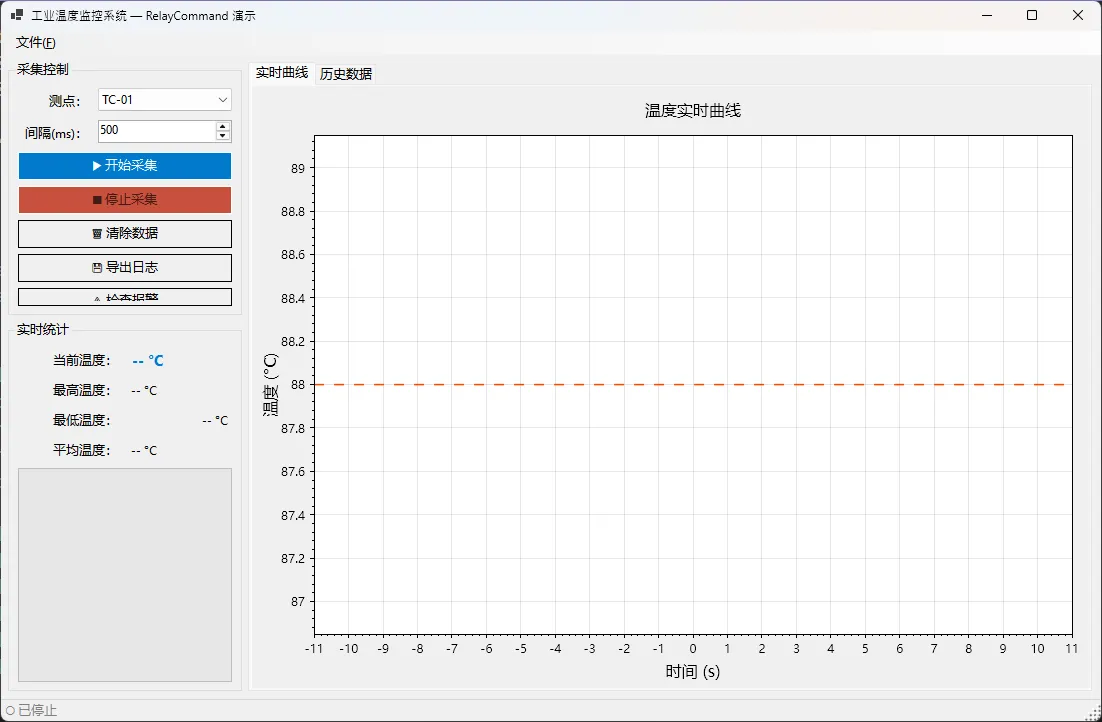
👨💻 先看一下效果
🏭 工业场景落地:温度监控面板
光说概念没用,来看实际项目怎么组织。我用的是一个工业温度采集面板,场景包括:周期采样、停止、清除历史、导出 CSV 日志、报警检查。
ViewModel 骨架
csharppublic sealed partial class SensorViewModel : ObservableObject
{
    private readonly SensorService _sensor = new();
    private readonly System.Windows.Forms.Timer _timer = new();

    [ObservableProperty]
    [NotifyPropertyChangedFor(nameof(StatusText))]
    [NotifyCanExecuteChangedFor(nameof(StartSamplingCommand))]
    [NotifyCanExecuteChangedFor(nameof(StopSamplingCommand))]
    private bool _isRunning;

    [ObservableProperty] private double _currentTemp;
    [ObservableProperty] private double _maxTemp;
    [ObservableProperty] private double _minTemp = 999;
    [ObservableProperty] private double _avgTemp;

    public string StatusText => IsRunning ? "● 采集中" : "○ 已停止";
    public ObservableCollection<SensorReading> Readings { get; } = [];
}
属性声明完,命令接着来:
csharp// 开始采集
[RelayCommand(CanExecute = nameof(CanStartSampling))]
private void StartSampling()
{
    _timer.Interval = Interval;
    _timer.Start();
    IsRunning = true;
}
private bool CanStartSampling() => !IsRunning;

// 停止采集
[RelayCommand(CanExecute = nameof(CanStopSampling))]
private void StopSampling()
{
    _timer.Stop();
    IsRunning = false;
}
private bool CanStopSampling() => IsRunning;

// 异步导出——注意返回 Task,自动生成 AsyncRelayCommand
[RelayCommand(CanExecute = nameof(CanExport))]
private async Task ExportLogAsync()
{
    await Task.Run(WriteLogFileAsync);
    ExportCompleted?.Invoke(this, $"已导出 {Readings.Count} 条记录");
}
private bool CanExport() => Readings.Count > 0;
注意导出这个命令——返回值是 Task,Source Generator 识别到之后自动生成 AsyncRelayCommand,执行期间内部会锁定防止重复触发,不需要你手动加任何并发控制。这个细节我第一次用的时候真的惊到了。
Form 里只剩"连线"
Form 的工作被压缩到三件事:把命令挂上去、订阅 ViewModel 事件、刷新图表。
csharpprivate void BindViewModelToControls()
{
    // 命令绑定——Form 不知道按钮点了之后发生什么
    btnStart.Click      += (_, _) => _vm.StartSamplingCommand.Execute(null);
    btnStop.Click       += (_, _) => _vm.StopSamplingCommand.Execute(null);
    btnClear.Click      += (_, _) => _vm.ClearDataCommand.Execute(null);
    btnExport.Click     += (_, _) => _vm.ExportLogCommand.Execute(null);

    // 菜单复用同一个命令,状态完全同步,一行搞定
    tsmiExport.Click    += (_, _) => _vm.ExportLogCommand.Execute(null);

    // CanExecuteChanged → 按钮 Enabled 自动跟随
    _vm.StartSamplingCommand.CanExecuteChanged +=
        (_, _) => btnStart.Enabled = _vm.StartSamplingCommand.CanExecute(null);

    _vm.StopSamplingCommand.CanExecuteChanged +=
        (_, _) => btnStop.Enabled = _vm.StopSamplingCommand.CanExecute(null);

    _vm.ExportLogCommand.CanExecuteChanged +=
        (_, _) => btnExport.Enabled = _vm.ExportLogCommand.CanExecute(null);
}
整个 Form.cs 没有一行 if (_isRunning),没有一行 button.Enabled = true/false 的主动赋值。所有状态流转都在 ViewModel 里自洽,Form 只是个"皮"。
📊 ScottPlot 5 实时曲线接入
工业项目少不了图表。ScottPlot 5 的 DataLogger 是专门为实时数据设计的,支持增量追加,不用每次刷新重建整条曲线:
csharpprivate void InitPlot()
{
    frmPlot.Plot.Title("温度实时曲线");
    frmPlot.Plot.XLabel("时间 (s)");
    frmPlot.Plot.YLabel("温度 (°C)");

    _logger = frmPlot.Plot.Add.DataLogger();
    _logger.LineStyle.Color = ScottPlot.Colors.DodgerBlue;
    _logger.LineStyle.Width = 2;
    _logger.ViewSlide();   // 滚动视图,始终追踪最新数据

    // 报警阈值线,一眼就能看到超限
    var alarmLine = frmPlot.Plot.Add.HorizontalLine(88.0);
    alarmLine.LineStyle.Color   = ScottPlot.Colors.OrangeRed;
    alarmLine.LineStyle.Pattern = ScottPlot.LinePattern.Dashed;

    frmPlot.Refresh();
}

// ViewModel 每来一条新数据,只追加一个点
private void OnNewReadingAdded(object? sender, EventArgs e)
{
    _logger?.Add(_vm.ChartX[^1], _vm.ChartY[^1]);
    frmPlot.Refresh();
}
DataLogger 的好处是性能稳——数据量到几万点也不会卡,因为底层是增量渲染,不是全量重绘。我在一个连续运行 8 小时的产线监控项目里用过,采样间隔 200ms,跑下来内存平稳,没有任何抖动。
⚠️ 三个容易踩的坑
坑一:忘记 partial 关键字。 Source Generator 要求 ViewModel 类必须是 partial class,漏了这个,特性不会报错,但命令属性根本不会生成,调试起来很迷惑。
坑二:CanExecuteChanged 不自动触发。 如果你的 CanExecute 依赖的属性没有贴 [NotifyCanExecuteChangedFor],按钮状态不会自动更新。这个问题不会抛异常,只是按钮一直是灰的或者一直是亮的,新手容易查半天。
坑三:异步命令里操作 UI 控件。 ExportLogAsync 在后台线程跑,里头不能直接操作任何 WinForms 控件。正确做法是通过事件通知 Form,由 Form 在主线程处理 UI 更新——也就是上面代码里 ExportCompleted?.Invoke(...) 那个模式。
🎯 重构前后,数字说话
在我经手的那个温控项目里,用 [RelayCommand] 重构之后:
- Form.cs 代码量:2300 行 → 280 行,缩减 88%
- ViewModel 单元测试覆盖率:0% → 74%(因为逻辑彻底脱离了 UI)
- 新增一个"批量导出"功能的开发时间:原来 2 天 → 现在 3 小时
最后那个数字才是真正的价值所在——需求变化的响应速度,这才是工业软件里最贵的东西。
💬 一句话总结三个核心收获
[RelayCommand]不是语法糖,是架构分层的强制约束。
CanExecute联动机制,让按钮状态管理从"手动同步"变成"自动推导"。
ViewModel 不依赖任何 UI 类型,单元测试才真正变得可行。
咱们团队现在所有新的 WinForms 工业项目,都强制要求用这套模式,没有例外。不是因为它"高大上",是因为它让代码可以活得更久——在工业现场,一套软件跑五年十年很正常,写的时候多想一步,后面维护的人(可能就是你自己)会感谢你的。
你现在手上有没有类似的"事件地狱"项目?欢迎在评论区聊聊你遇到过最难维护的代码结构,说不定大家都踩过同一个坑。
#C#开发 #WinForms #MVVM #CommunityToolkit #工业软件
相关信息
我用夸克网盘给你分享了「AppMvvm05.zip」,点击链接或复制整段内容,打开「夸克APP」即可获取。
/b33c3YRvXb:/
链接:https://pan.quark.cn/s/2ac9efc4f213
提取码:Z1hC
本文作者:技术老小子
本文链接:
版权声明:本博客所有文章除特别声明外,均采用 BY-NC-SA 许可协议。转载请注明出处!