
目录
Tkinter 视觉效果优化:扁平化与美观主题实战指南
🎨 说在前面:那个"土"字,扎心了
做过 Tkinter 项目的人,多少都听过这句话——"这界面怎么这么土?"
不冤枉。默认的 Tkinter 界面,灰底灰按钮,控件边框带着浮雕感,字体是系统默认的宋体,整体风格停留在 Windows XP 时代。拿去给客户演示,对方第一反应往往是:"这是正式版吗?"
问题不在于 Tkinter 本身能力不行,而在于大多数教程只教你怎么"摆控件",从来不讲怎么让它好看。底层的 ttk 主题引擎、Style 配置系统、Canvas 自绘机制,这些才是让界面脱胎换骨的关键,却鲜有人系统讲过。
这篇文章就干这件事。从原理到代码,从快速美化到深度定制,给你一套在 Windows 下把 Tkinter 界面做到"现代感"的完整方案。所有代码在 Python 3.10 + Windows 11 环境下验证可运行。
🔍 先搞清楚:Tkinter 的视觉体系是怎么运作的
很多人不知道,Tkinter 其实有两套控件体系并存——tkinter(经典控件)和 tkinter.ttk(主题控件)。
经典控件,比如 tk.Button、tk.Label,样式完全靠属性硬写,bg、fg、relief,每个控件单独配,改起来费劲,统一性也差。ttk 控件则不同,它引入了主题(Theme)机制,通过 ttk.Style 统一管理所有控件的外观,一处改,全局生效。
pythonimport tkinter.ttk as ttk
style = ttk.Style()
print(style.theme_names())
# ('winnative', 'clam', 'alt', 'default', 'classic', 'vista', 'xpnative')
Windows 下内置了 vista、winnative、xpnative 等主题,但说实话,这几个主题的审美水准……和"现代"二字还差得远。clam 主题相对简洁,是自定义改造的最佳基底——后面咱们会重点用它。
核心结论:做视觉优化,优先用 ttk 控件 + ttk.Style 定制,而不是给每个 tk 控件单独设属性。
🚀 方案一:基于 ttkbootstrap 的快速现代化
如果项目工期紧,想最快速度出效果,ttkbootstrap 是目前最成熟的选择。它是对 ttk 的封装,内置了十几套 Bootstrap 风格主题,引入成本极低,做过web前端的一看就知道怎么个玩意了。
bashpip install ttkbootstrap
直接看效果对比——原始代码:
python# 原始 Tkinter 界面(灰色时代)
import tkinter as tk
root = tk.Tk()
root.title("原始界面")
tk.Label(root, text="用户名").pack()
tk.Entry(root).pack()
tk.Button(root, text="登录").pack()
root.mainloop()
换成 ttkbootstrap 之后:
pythonimport ttkbootstrap as ttk
from ttkbootstrap.constants import *

# 一行代码切换主题
root = ttk.Window(themename="cosmo")  # 可选: flatly, darkly, superhero, journal...
root.title("bootstrap风格的登录界面")
root.geometry("400x300")

frame = ttk.Frame(root, padding=20)
frame.pack(fill="both", expand=True)

ttk.Label(frame, text="用户名", bootstyle="secondary").pack(anchor="w")
ttk.Entry(frame, bootstyle="primary").pack(fill="x", pady=(4, 12))

ttk.Label(frame, text="密码", bootstyle="secondary").pack(anchor="w")
ttk.Entry(frame, show="*", bootstyle="primary").pack(fill="x", pady=(4, 20))

# bootstyle 参数控制颜色语义:primary/success/danger/warning/info
ttk.Button(frame, text="登录", bootstyle="primary", width=20).pack()

root.mainloop()
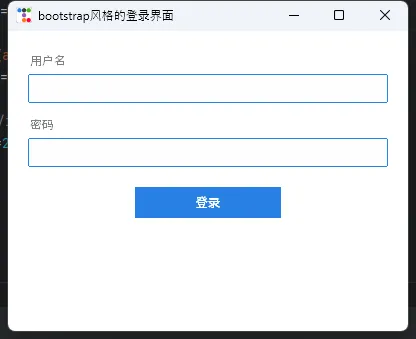
bootstyle 参数是 ttkbootstrap 的核心概念——它不是颜色,是语义。primary 是主色调,danger 是警告红,success 是确认绿,换主题时这些语义颜色自动跟着变,不需要改任何代码。
踩坑预警: ttkbootstrap 和原生 tk 控件混用会出现样式不一致的情况。建议整个项目统一用 ttkbootstrap 的控件,不要混搭 tk.Button 之类的经典控件。
🎨 方案二:纯手工定制 ttk.Style(零依赖)
不想引入第三方库?完全可以。ttk.Style 的配置能力比大多数人想象的强得多。
下面是一套完整的扁平化主题配置,从颜色系统到控件样式,一次性定义清楚:
pythonimport tkinter as tk
from tkinter import ttk

# ── 颜色系统(改这里就能换整体风格)──
COLORS = {
    "bg_primary":     "#1e1e2e",  # 主背景(深色)
    "bg_secondary":   "#2a2a3e",  # 次级背景
    "bg_card":        "#313244",  # 卡片背景
    "accent":         "#cba6f7",  # 强调色(紫)
    "accent_hover":   "#b4befe",  # 悬停色
    "text_primary":   "#cdd6f4",  # 主文字
    "text_secondary": "#a6adc8",  # 次级文字
    "success":        "#a6e3a1",  # 成功绿
    "danger":         "#f38ba8",  # 警告红
    "border":         "#45475a",  # 边框色
}


def apply_flat_theme(root):
    """
    应用扁平化深色主题
    基于 clam 主题改造,保留 ttk 的主题引擎
    """    root.configure(bg=COLORS["bg_primary"])

    style = ttk.Style()
    style.theme_use("clam")

    # ── Frame ──
    style.configure("TFrame", background=COLORS["bg_primary"])
    style.configure("Card.TFrame", background=COLORS["bg_card"], relief="flat")

    # ── Label ──
    style.configure(
        "TLabel",
        background=COLORS["bg_primary"],
        foreground=COLORS["text_primary"],
        font=("Microsoft YaHei UI", 10)
    )
    style.configure(
        "Title.TLabel",
        font=("Microsoft YaHei UI", 16, "bold"),
        foreground=COLORS["accent"]
    )    style.configure(
        "Muted.TLabel",
        foreground=COLORS["text_secondary"],
        font=("Microsoft YaHei UI", 9)
    )

    # ── Button ──
    style.configure(
        "TButton",
        background=COLORS["accent"],
        foreground=COLORS["bg_primary"],
        font=("Microsoft YaHei UI", 10, "bold"),
        borderwidth=0,
        relief="flat",
        padding=(16, 8)
    )
    style.map(
        "TButton",
        background=[
            ("active",   COLORS["accent_hover"]),
            ("disabled", COLORS["border"])
        ],
        foreground=[("disabled", COLORS["text_secondary"])]
    )
    # 幽灵按钮
    style.configure(
        "Ghost.TButton",
        background=COLORS["bg_primary"],
        foreground=COLORS["accent"],
        borderwidth=1,
        relief="solid",
        padding=(14, 7)
    )
    style.map(
        "Ghost.TButton",
        background=[("active", COLORS["bg_secondary"])]
    )
    # 危险按钮
    style.configure(
        "Danger.TButton",
        background=COLORS["danger"],
        foreground=COLORS["bg_primary"],
        font=("Microsoft YaHei UI", 10, "bold"),
        borderwidth=0,
        relief="flat",
        padding=(16, 8)
    )
    style.map(
        "Danger.TButton",
        background=[("active", "#e07090")]
    )
    # ── Entry ──
    style.configure(
        "TEntry",
        fieldbackground=COLORS["bg_secondary"],
        foreground=COLORS["text_primary"],
        insertcolor=COLORS["accent"],
        borderwidth=1,
        relief="flat",
        padding=(10, 6)
    )
    style.map(
        "TEntry",
        fieldbackground=[("focus", COLORS["bg_card"])],
        bordercolor=[
            ("focus",  COLORS["accent"]),
            ("!focus", COLORS["border"])
        ]
    )
    # ── Combobox ──
    style.configure(
        "TCombobox",
        fieldbackground=COLORS["bg_secondary"],
        background=COLORS["bg_secondary"],
        foreground=COLORS["text_primary"],
        arrowcolor=COLORS["accent"],
        borderwidth=1,
        relief="flat"
    )

    # ── Treeview ──
    style.configure(
        "Treeview",
        background=COLORS["bg_secondary"],
        foreground=COLORS["text_primary"],
        fieldbackground=COLORS["bg_secondary"],
        rowheight=32,
        borderwidth=0,
        font=("Microsoft YaHei UI", 9)
    )
    style.configure(
        "Treeview.Heading",
        background=COLORS["bg_card"],
        foreground=COLORS["text_secondary"],
        font=("Microsoft YaHei UI", 9, "bold"),
        relief="flat",
        borderwidth=0
    )
    style.map(
        "Treeview",
        background=[("selected", COLORS["accent"])],
        foreground=[("selected", COLORS["bg_primary"])]
    )
    # ── Scrollbar ──
    style.configure(
        "Vertical.TScrollbar",
        background=COLORS["bg_card"],
        troughcolor=COLORS["bg_secondary"],
        borderwidth=0,
        arrowsize=0,
        width=6
    )
    style.map(
        "Vertical.TScrollbar",
        background=[("active", COLORS["border"])]
    )
    # ── Progressbar ──
    style.configure(
        "TProgressbar",
        troughcolor=COLORS["bg_card"],
        background=COLORS["accent"],
        borderwidth=0,
        thickness=6
    )

    return style


def build_demo_ui(root, style):
    """构建完整演示界面,覆盖所有主题组件"""

    root.title("Flat Dark Theme — Demo")
    root.geometry("780x600")
    root.resizable(False, False)

    # ── 外层滚动容器 ──    canvas = tk.Canvas(
        root,
        bg=COLORS["bg_primary"],
        highlightthickness=0
    )
    scrollbar = ttk.Scrollbar(
        root,
        orient="vertical",
        command=canvas.yview,
        style="Vertical.TScrollbar"
    )
    canvas.configure(yscrollcommand=scrollbar.set)
    scrollbar.pack(side="right", fill="y")
    canvas.pack(side="left", fill="both", expand=True)

    # 内容主框架(放进 canvas)
    main = ttk.Frame(canvas)
    main_window = canvas.create_window((0, 0), window=main, anchor="nw")

    def _on_frame_configure(e):
        canvas.configure(scrollregion=canvas.bbox("all"))

    def _on_canvas_configure(e):
        canvas.itemconfig(main_window, width=e.width)

    main.bind("<Configure>", _on_frame_configure)
    canvas.bind("<Configure>", _on_canvas_configure)

    # 鼠标滚轮支持
    def _on_mousewheel(e):
        canvas.yview_scroll(int(-1 * (e.delta / 120)), "units")

    canvas.bind_all("<MouseWheel>", _on_mousewheel)

    pad = {"padx": 32, "pady": 12}

    # ── 标题区 ──    header = ttk.Frame(main)
    header.pack(fill="x", padx=32, pady=(28, 4))

    ttk.Label(header, text="Flat Dark Theme", style="Title.TLabel").pack(anchor="w")
    ttk.Label(
        header,
        text="基于 ttk clam 引擎的扁平化深色主题演示",
        style="Muted.TLabel"
    ).pack(anchor="w", pady=(2, 0))

    ttk.Separator(main, orient="horizontal").pack(fill="x", padx=32, pady=8)

    # ── 卡片:按钮组 ──    _section_title(main, "按钮 Buttons")
    btn_card = ttk.Frame(main, style="Card.TFrame", padding=20)
    btn_card.pack(fill="x", **pad)

    btn_row = ttk.Frame(btn_card, style="Card.TFrame")
    btn_row.pack(anchor="w")

    ttk.Button(btn_row, text="主要按钮").pack(side="left", padx=(0, 10))
    ttk.Button(btn_row, text="幽灵按钮", style="Ghost.TButton").pack(side="left", padx=(0, 10))
    ttk.Button(btn_row, text="危险操作", style="Danger.TButton").pack(side="left", padx=(0, 10))
    ttk.Button(btn_row, text="已禁用", state="disabled").pack(side="left")

    # ── 卡片:输入框 ──    _section_title(main, "输入框 Entry & Combobox")
    entry_card = ttk.Frame(main, style="Card.TFrame", padding=20)
    entry_card.pack(fill="x", **pad)

    ttk.Label(
        entry_card,
        text="用户名",
        style="Muted.TLabel",
        background=COLORS["bg_card"]
    ).pack(anchor="w")
    username_var = tk.StringVar(value="")
    ttk.Entry(entry_card, textvariable=username_var, width=36).pack(
        anchor="w", pady=(4, 12)
    )

    ttk.Label(
        entry_card,
        text="角色",
        style="Muted.TLabel",
        background=COLORS["bg_card"]
    ).pack(anchor="w")
    combo_var = tk.StringVar(value="管理员")
    ttk.Combobox(
        entry_card,
        textvariable=combo_var,
        values=["管理员", "编辑", "访客"],
        width=34,
        state="readonly"
    ).pack(anchor="w", pady=(4, 0))

    # ── 卡片:进度条 ──    _section_title(main, "进度条 Progressbar")
    prog_card = ttk.Frame(main, style="Card.TFrame", padding=20)
    prog_card.pack(fill="x", **pad)

    prog_var = tk.IntVar(value=68)
    ttk.Progressbar(
        prog_card,
        variable=prog_var,
        maximum=100,
        length=500
    ).pack(anchor="w")
    ttk.Label(
        prog_card,
        text="当前进度:68%",
        style="Muted.TLabel",
        background=COLORS["bg_card"]
    ).pack(anchor="w", pady=(6, 0))

    # ── 卡片:Treeview 表格 ──    _section_title(main, "表格 Treeview")
    tree_card = ttk.Frame(main, style="Card.TFrame", padding=20)
    tree_card.pack(fill="x", **pad)

    columns = ("id", "name", "role", "status")
    tree = ttk.Treeview(tree_card, columns=columns, show="headings", height=5)

    tree.heading("id",     text="ID")
    tree.heading("name",   text="姓名")
    tree.heading("role",   text="角色")
    tree.heading("status", text="状态")

    tree.column("id",     width=60,  anchor="center")
    tree.column("name",   width=160, anchor="w")
    tree.column("role",   width=120, anchor="center")
    tree.column("status", width=100, anchor="center")

    sample_data = [
        ("001", "Alice",   "管理员", "在线"),
        ("002", "Bob",     "编辑",   "离线"),
        ("003", "Charlie", "访客",   "在线"),
        ("004", "Diana",   "编辑",   "在线"),
        ("005", "Eve",     "访客",   "离线"),
    ]
    for row in sample_data:
        tree.insert("", "end", values=row)

    tree.pack(fill="x")

    # ── 底部间距 ──    ttk.Frame(main, height=24).pack()


def _section_title(parent, text):
    """小节标题辅助函数"""
    ttk.Label(
        parent,
        text=text,
        style="Muted.TLabel"
    ).pack(anchor="w", padx=32, pady=(16, 0))

if __name__ == "__main__":
    root = tk.Tk()
    style = apply_flat_theme(root)
    build_demo_ui(root, style)
    root.mainloop()
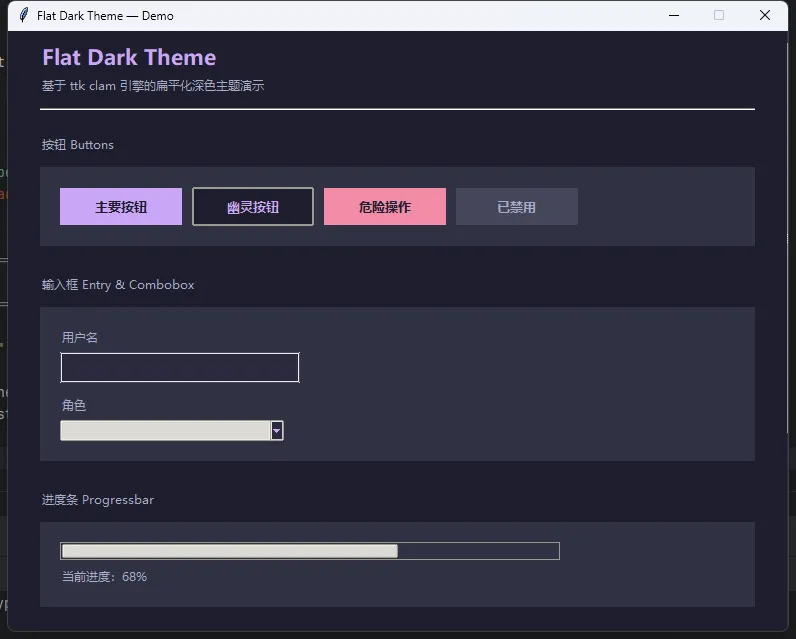
这套配置有几个设计决策值得解释一下。
clam 作为基底,是因为它的控件结构比 default 更容易被覆盖——default 主题有些属性是硬编码在 Tcl 层面的,Python 这边改不动。clam 相对"干净",改造空间大。
style.map() 是处理状态变化的关键方法,用于定义鼠标悬停(active)、禁用(disabled)、聚焦(focus)等状态下的样式差异。只用 configure() 的话,按钮按下去没有任何视觉反馈,体验很差。
🪟 方案三:Canvas 自绘——突破 ttk 的天花板
ttk.Style 能覆盖大部分场景,但有些效果它做不到——圆角按钮、渐变背景、自定义进度条动画。这时候就得上 Canvas 自绘了。
下面实现一个带圆角和悬停效果的自定义按钮:
pythonimport math
import tkinter as tk


class RoundedButton(tk.Canvas):
    """
    圆角按钮,纯 Canvas 实现
    支持悬停颜色变化和点击回调
    """
    def __init__(self, parent, text, command=None,
                 width=120, height=36,
                 radius=8,
                 bg_normal="#cba6f7",
                 bg_hover="#b4befe",
                 bg_press="#a0a8d8",
                 fg="#1e1e2e",
                 font=("Microsoft YaHei UI", 10, "bold"),
                 **kwargs):
        super().__init__(
            parent,
            width=width, height=height,
            bg=parent.cget("bg"),
            highlightthickness=0,
            **kwargs
        )

        self.command = command
        self.bg_normal = bg_normal
        self.bg_hover = bg_hover
        self.bg_press = bg_press
        self.radius = radius
        self.width_ = width
        self.height_ = height

        self._rect = self._draw_rounded_rect(bg_normal, radius)

        self._text = self.create_text(
            width // 2, height // 2,
            text=text, fill=fg, font=font
        )

        self.bind("<Enter>", self._on_enter)
        self.bind("<Leave>", self._on_leave)
        self.bind("<ButtonPress-1>", self._on_press)
        self.bind("<ButtonRelease-1>", self._on_release)

    def _draw_rounded_rect(self, color, r):
        w, h = self.width_, self.height_
        self.delete("rounded_rect")

        # 动态采样点:确保每个圆角至少有 72 个采样点
        N = max(72, int(r * 10))
        points = []

        corners = [
            (r, r, 180, 270),
            (w - r, r, 270, 360),
            (w - r, h - r, 0, 90),
            (r, h - r, 90, 180),
        ]

        for cx, cy, a_start, a_end in corners:
            for i in range(N + 1):
                angle = math.radians(a_start + (a_end - a_start) * i / N)
                points.append(cx + r * math.cos(angle))
                points.append(cy + r * math.sin(angle))

        self.create_polygon(
            points,
            smooth=False,
            fill=color,
            outline="",
            tags="rounded_rect"
        )

        if hasattr(self, "_text"):
            self.tag_raise(self._text)

        return "rounded_rect"


    def _set_color(self, color):
        self.itemconfig("rounded_rect", fill=color)

    def _on_enter(self, _):
        self._set_color(self.bg_hover)
        self.config(cursor="hand2")

    def _on_leave(self, _):
        self._set_color(self.bg_normal)
        self.config(cursor="")

    def _on_press(self, _):
        self._set_color(self.bg_press)

    def _on_release(self, _):
        self._set_color(self.bg_hover)
        if self.command:
            self.command()


class App(tk.Tk):
    def __init__(self):
        super().__init__()
        self.title("RoundedButton 测试")
        self.resizable(False, False)
        self.configure(bg="#1e1e2e")

        # ── 顶部标题 ──────────────────────────────        tk.Label(
            self, text="圆角按钮演示",
            bg="#1e1e2e", fg="#cdd6f4",
            font=("Microsoft YaHei UI", 14, "bold")
        ).pack(pady=(24, 4))

        tk.Label(
            self, text="悬停 / 按下 / 松开,观察颜色变化",
            bg="#1e1e2e", fg="#6c7086",
            font=("Microsoft YaHei UI", 9)
        ).pack(pady=(0, 20))

        # ── 计数器显示 ────────────────────────────        self._count = 0
        self._count_var = tk.StringVar(value="点击次数:0")
        tk.Label(
            self, textvariable=self._count_var,
            bg="#1e1e2e", fg="#a6e3a1",
            font=("Microsoft YaHei UI", 11)
        ).pack(pady=(0, 16))

        # ── 按钮区域 ──────────────────────────────        btn_frame = tk.Frame(self, bg="#1e1e2e")
        btn_frame.pack(padx=32, pady=(0, 12))

        # 默认紫色按钮
        RoundedButton(
            btn_frame, text="点我计数",
            command=self._increment,
            width=130, height=38
        ).grid(row=0, column=0, padx=8, pady=8)

        # 绿色主题按钮
        RoundedButton(
            btn_frame, text="重置",
            command=self._reset,
            width=100, height=38,
            bg_normal="#a6e3a1",
            bg_hover="#94d3a2",
            bg_press="#7abf8a",
            fg="#1e1e2e"
        ).grid(row=0, column=1, padx=8, pady=8)

        # 红色主题按钮
        RoundedButton(
            btn_frame, text="退出",
            command=self.destroy,
            width=100, height=38,
            bg_normal="#f38ba8",
            bg_hover="#e07090",
            bg_press="#c85878",
            fg="#1e1e2e"
        ).grid(row=0, column=2, padx=8, pady=8)

        # ── 大尺寸 / 大圆角 展示 ─────────────────        tk.Label(
            self, text="不同尺寸 & 圆角半径",
            bg="#1e1e2e", fg="#6c7086",
            font=("Microsoft YaHei UI", 9)
        ).pack(pady=(8, 6))

        size_frame = tk.Frame(self, bg="#1e1e2e")
        size_frame.pack(padx=32, pady=(0, 24))

        RoundedButton(
            size_frame, text="小按钮",
            width=80, height=26, radius=6,
            bg_normal="#89b4fa", bg_hover="#74a8f5",
            bg_press="#5a8ee0", fg="#1e1e2e",
            font=("Microsoft YaHei UI", 8, "bold")
        ).grid(row=0, column=0, padx=8)

        RoundedButton(
            size_frame, text="标准按钮",
            width=120, height=36, radius=10,
            bg_normal="#cba6f7", bg_hover="#b4befe",
            bg_press="#a0a8d8", fg="#1e1e2e"
        ).grid(row=0, column=1, padx=8)

        RoundedButton(
            size_frame, text="大  按  钮",
            width=180, height=50, radius=18,
            bg_normal="#fab387", bg_hover="#f09070",
            bg_press="#d87858", fg="#1e1e2e",
            font=("Microsoft YaHei UI", 12, "bold")
        ).grid(row=0, column=2, padx=8)

        # ── 状态栏 ────────────────────────────────        self._status_var = tk.StringVar(value="就绪")
        tk.Label(
            self, textvariable=self._status_var,
            bg="#181825", fg="#585b70",
            font=("Microsoft YaHei UI", 8),
            anchor="w", padx=10
        ).pack(fill="x", side="bottom", ipady=4)

    # ── 回调 ──────────────────────────────────────    def _increment(self):
        self._count += 1
        self._count_var.set(f"点击次数:{self._count}")
        self._status_var.set(f"已点击 {self._count} 次")

    def _reset(self):
        self._count = 0
        self._count_var.set("点击次数:0")
        self._status_var.set("已重置")


if __name__ == "__main__":
    App().mainloop()
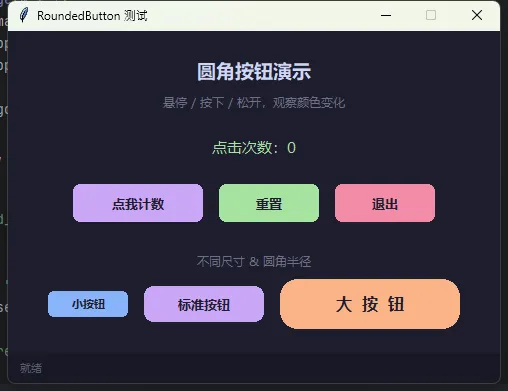 用法和普通按钮一样,直接
 pack() 或 grid():
pythonbtn = RoundedButton(
    frame, text="开始处理",
    command=lambda: print("clicked"),
    width=140, height=40, radius=10
)
btn.pack(pady=10)
smooth=True 是圆角效果的关键参数,它让折线多边形的顶点变成曲线过渡。highlightthickness=0 去掉 Canvas 默认的焦点边框,否则点击后会出现一圈蓝色虚线,很丑。
⚠️ 几个必须注意的细节
字体选择是视觉的灵魂。 Windows 下用 Microsoft YaHei UI(微软雅黑 UI),比普通微软雅黑渲染更清晰,尤其是小字号。代码字体用 Consolas。千万别用宋体——那是上个时代的遗留物。
ipady 和 padding 的区别。 ipady 是 pack()/grid() 布局管理器的内边距,影响控件占位;padding 是 ttk.Style 里的内边距,影响控件内容区域。两者叠加使用,才能让输入框有足够的点击区域。
深色主题下的滚动条问题。 默认滚动条在深色背景下会显示白色边框,用 style.configure("Vertical.TScrollbar", borderwidth=0) 去掉,再配合 arrowsize=0 隐藏箭头,才能得到那种细线滚动条的现代感。
Canvas 按钮的"白边"问题。 Canvas 的 bg 参数必须设为父容器的背景色,否则圆角之外的区域会露出白色(或灰色)背景,圆角效果就毁了。用 parent.cget("bg") 动态获取父容器颜色,比硬编码颜色值更健壮。
💡 三句话技术洞察
ttk.Style是 Tkinter 的 CSS,学会它就等于掌握了全局样式控制权。
颜色系统先于控件样式——把颜色统一定义在字典里,后期换肤只改一处。
Canvas 自绘是突破 ttk 限制的最后手段,不到必要不动用,维护成本比 Style 高一个量级。
本文从 ttk.Style 的主题机制讲起,覆盖了 ttkbootstrap 快速方案、纯手工扁平化主题定制,以及 Canvas 圆角按钮的自绘实现,最后整合成一个完整的登录窗口示例。三套方案各有适用场景,按需取用即可。欢迎在评论区聊聊你在 Tkinter 界面美化上踩过的坑,或者分享你自己的主题配色方案。
🏷️ Python Tkinter GUI开发 扁平化设计 Windows桌面开发
本文作者:技术老小子
本文链接:
版权声明:本博客所有文章除特别声明外,均采用 BY-NC-SA 许可协议。转载请注明出处!