
Press Ctrl+ and K to search
目录
作为一名有着多年WinForm开发经验的C#程序员,当你第一次接触WPF时,是否被依赖属性这个概念搞得一头雾水?别担心,你不是一个人在战斗!
从WinForm的简单属性到WPF的依赖属性,这不仅仅是语法的改变,更是开发思维的转换。依赖属性是WPF数据绑定、样式、动画等核心功能的基础,掌握它的注册机制,就像拿到了WPF世界的通行证。
本文将从WinForm开发者的视角,用最接地气的方式带你搞定依赖属性注册,让你的WPF转型之路更加顺畅!
🤔 为什么WinForm属性不够用了?
WinForm vs WPF:属性机制的根本差异
在WinForm中,我们习惯了这样的属性定义:
C#// WinForm中的普通属性
public partial class MyControl : UserControl
{
    private string _myText;
    public string MyText
    {
        get { return _myText; }
        set
        {
            _myText = value;
            // 手动刷新界面
            this.Invalidate();
        }
    }
}
但在WPF中,这种方式存在几个致命问题:
- 无法支持数据绑定
- 不支持样式设置
- 无法参与动画系统
- 缺乏属性值继承机制
WPF的依赖属性就是为了解决这些问题而生的!
🎯 依赖属性注册的三种实战场景
📌 场景一:基础依赖属性注册
最常见的场景就是为自定义控件添加可绑定的属性。
C#using System.Windows;
using System.Windows.Controls;

namespace AppDependencyProperty
{
    public class CustomButton : Button
    {
        // 依赖属性注册
        public static readonly DependencyProperty CustomTextProperty =
            DependencyProperty.Register(
                "CustomText",
                typeof(string),
                typeof(CustomButton),
                new PropertyMetadata("默认文本", OnCustomTextChanged));

        // CLR包装器
        public string CustomText
        {
            get { return (string)GetValue(CustomTextProperty); }
            set { SetValue(CustomTextProperty, value); }
        }

        // 属性变化回调
        private static void OnCustomTextChanged(DependencyObject d, DependencyPropertyChangedEventArgs e)
        {
            var control = (CustomButton)d;
            control.Content = e.NewValue; // 直接更新按钮内容
        }

        public CustomButton()
        {
            // 设置初始内容
            this.Content = this.CustomText;
        }
    }
}
XML<Window x:Class="AppDependencyProperty.MainWindow"
        xmlns="http://schemas.microsoft.com/winfx/2006/xaml/presentation"
        xmlns:x="http://schemas.microsoft.com/winfx/2006/xaml"
        xmlns:local="clr-namespace:AppDependencyProperty"
        Title="MainWindow" Height="450" Width="800">
    <StackPanel Margin="20">

        <!-- 原有的TextBox -->
        <TextBox x:Name="textBox" Text="测试文本" Margin="0,0,0,10"/>

        <!-- 使用自定义的CustomButton -->
        <local:CustomButton CustomText="我是CustomButton"
                           Width="150" Height="40"
                           Margin="0,0,0,10"
                           Background="LightBlue"/>

        <!-- 绑定到TextBox的CustomButton -->
        <local:CustomButton CustomText="{Binding ElementName=textBox, Path=Text}"
                           Width="150" Height="40"
                           Margin="0,0,0,10"
                           Background="LightGreen"/>

        <!-- 原有的普通按钮 -->
        <Button Content="普通按钮" Width="150" Height="40"/>

    </StackPanel>
</Window>
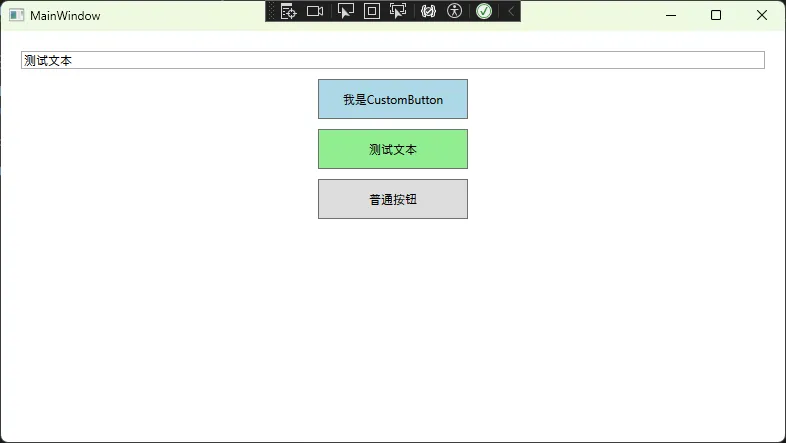
🚨 新手常踩的坑:
- 忘记添加
static readonly修饰符 - 属性名和注册名不一致
- 回调方法不是静态的
📌 场景二:带验证的依赖属性
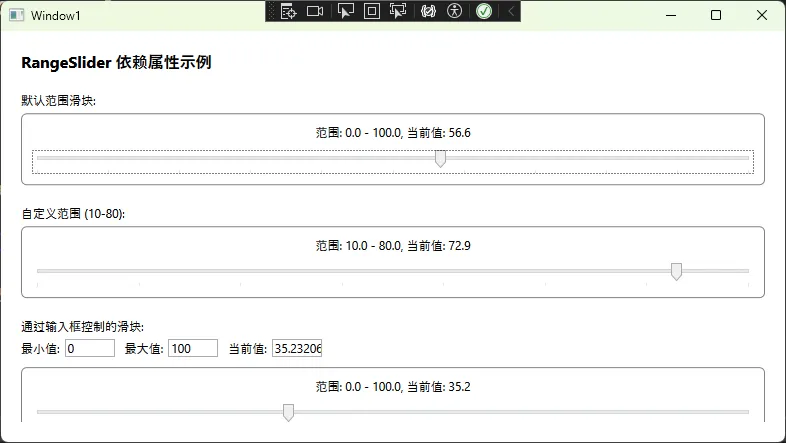
实际项目中,我们经常需要对属性值进行验证:
C#using System;
using System.Windows;
using System.Windows.Controls;

namespace AppDependencyProperty
{
    public partial class RangeSlider : UserControl
    {
        #region 依赖属性定义

        // MinValue属性
        public static readonly DependencyProperty MinValueProperty =
            DependencyProperty.Register(
                "MinValue",
                typeof(double),
                typeof(RangeSlider),
                new PropertyMetadata(0.0, OnMinValueChanged, CoerceMinValue),
                ValidateMinValue);

        // MaxValue属性
        public static readonly DependencyProperty MaxValueProperty =
            DependencyProperty.Register(
                "MaxValue",
                typeof(double),
                typeof(RangeSlider),
                new PropertyMetadata(100.0, OnMaxValueChanged, CoerceMaxValue),
                ValidateMaxValue);

        // CurrentValue属性
        public static readonly DependencyProperty CurrentValueProperty =
            DependencyProperty.Register(
                "CurrentValue",
                typeof(double),
                typeof(RangeSlider),
                new PropertyMetadata(50.0, OnCurrentValueChanged, CoerceCurrentValue));

        #endregion

        #region CLR属性包装器

        public double MinValue
        {
            get { return (double)GetValue(MinValueProperty); }
            set { SetValue(MinValueProperty, value); }
        }

        public double MaxValue
        {
            get { return (double)GetValue(MaxValueProperty); }
            set { SetValue(MaxValueProperty, value); }
        }

        public double CurrentValue
        {
            get { return (double)GetValue(CurrentValueProperty); }
            set { SetValue(CurrentValueProperty, value); }
        }

        #endregion

        #region 验证回调

        private static bool ValidateMinValue(object value)
        {
            double doubleValue = (double)value;
            return !double.IsNaN(doubleValue) && !double.IsInfinity(doubleValue);
        }

        private static bool ValidateMaxValue(object value)
        {
            double doubleValue = (double)value;
            return !double.IsNaN(doubleValue) && !double.IsInfinity(doubleValue);
        }

        #endregion

        #region 强制回调

        private static object CoerceMinValue(DependencyObject d, object baseValue)
        {
            var slider = d as RangeSlider;
            double value = (double)baseValue;

            // 确保MinValue不超过MaxValue
            if (slider != null && value > slider.MaxValue)
            {
                return slider.MaxValue;
            }

            return Math.Max(0, value); // 最小值不能小于0
        }

        private static object CoerceMaxValue(DependencyObject d, object baseValue)
        {
            var slider = d as RangeSlider;
            double value = (double)baseValue;

            // 确保MaxValue不小于MinValue
            if (slider != null && value < slider.MinValue)
            {
                return slider.MinValue;
            }

            return value;
        }

        private static object CoerceCurrentValue(DependencyObject d, object baseValue)
        {
            var slider = d as RangeSlider;
            double value = (double)baseValue;

            if (slider != null)
            {
                // 确保CurrentValue在MinValue和MaxValue之间
                return Math.Max(slider.MinValue, Math.Min(slider.MaxValue, value));
            }

            return value;
        }

        #endregion

        #region 属性变化回调

        private static void OnMinValueChanged(DependencyObject d, DependencyPropertyChangedEventArgs e)
        {
            var slider = d as RangeSlider;
            slider?.UpdateSliderRange();
            // 重新强制CurrentValue以确保在有效范围内
            slider?.CoerceValue(CurrentValueProperty);
        }

        private static void OnMaxValueChanged(DependencyObject d, DependencyPropertyChangedEventArgs e)
        {
            var slider = d as RangeSlider;
            slider?.UpdateSliderRange();
            // 重新强制CurrentValue以确保在有效范围内
            slider?.CoerceValue(CurrentValueProperty);
        }

        private static void OnCurrentValueChanged(DependencyObject d, DependencyPropertyChangedEventArgs e)
        {
            var slider = d as RangeSlider;
            slider?.UpdateCurrentValue();
        }

        #endregion

        #region 构造函数和初始化

        public RangeSlider()
        {
            InitializeComponent();
            UpdateSliderRange();
        }

        #endregion

        #region 私有方法

        private void UpdateSliderRange()
        {
            // 更新UI显示
            if (mainSlider != null)
            {
                mainSlider.Minimum = MinValue;
                mainSlider.Maximum = MaxValue;
            }

            UpdateDisplayText();
            Console.WriteLine($"范围更新: {MinValue:F1} - {MaxValue:F1}");
        }

        private void UpdateCurrentValue()
        {
            if (mainSlider != null)
            {
                mainSlider.Value = CurrentValue;
            }

            UpdateDisplayText();
        }

        private void UpdateDisplayText()
        {
            if (displayText != null)
            {
                displayText.Text = $"范围: {MinValue:F1} - {MaxValue:F1}, 当前值: {CurrentValue:F1}";
            }
        }

        #endregion

        #region 事件处理

        private void MainSlider_ValueChanged(object sender, RoutedPropertyChangedEventArgs<double> e)
        {
            // 更新CurrentValue属性
            CurrentValue = e.NewValue;
        }

        #endregion
    }
}
XML<UserControl x:Class="AppDependencyProperty.RangeSlider"
             xmlns="http://schemas.microsoft.com/winfx/2006/xaml/presentation"
             xmlns:x="http://schemas.microsoft.com/winfx/2006/xaml"
             xmlns:mc="http://schemas.openxmlformats.org/markup-compatibility/2006"
             xmlns:d="http://schemas.microsoft.com/expression/blend/2008"
             xmlns:local="clr-namespace:AppDependencyProperty"
             mc:Ignorable="d"
             d:DesignHeight="450" d:DesignWidth="800">
    <Border BorderBrush="Gray" BorderThickness="1" CornerRadius="5" Padding="10">
        <StackPanel>
            <!-- 显示文本 -->
            <TextBlock x:Name="displayText"
                       Text="范围: 0.0 - 100.0, 当前值: 50.0"
                       HorizontalAlignment="Center"
                       Margin="0,0,0,10"/>

            <!-- 主滑块 -->
            <Slider x:Name="mainSlider"
                    Minimum="0"
                    Maximum="100"
                    Value="50"
                    ValueChanged="MainSlider_ValueChanged"
                    TickPlacement="BottomRight"
                    TickFrequency="10"/>
        </StackPanel>
    </Border>
</UserControl>
📌 场景三:附加属性注册(最容易忽视但很强大)
附加属性让你可以为任何对象添加属性,这在布局和行为设计中极其有用:
C#using System.Windows;
using System.Windows.Controls;

namespace AppDependencyProperty
{
    public static class GridHelper
    {
        #region AutoRow 附加属性

        public static readonly DependencyProperty AutoRowProperty =
            DependencyProperty.RegisterAttached(
                "AutoRow",
                typeof(bool),
                typeof(GridHelper),
                new PropertyMetadata(false, OnAutoRowChanged));

        public static bool GetAutoRow(DependencyObject obj)
        {
            return (bool)obj.GetValue(AutoRowProperty);
        }

        public static void SetAutoRow(DependencyObject obj, bool value)
        {
            obj.SetValue(AutoRowProperty, value);
        }

        private static void OnAutoRowChanged(DependencyObject d, DependencyPropertyChangedEventArgs e)
        {
            if (d is Grid grid && (bool)e.NewValue)
            {
                // 如果Grid已经加载,立即分配
                if (grid.IsLoaded)
                {
                    AutoAssignRows(grid);
                }
                else
                {
                    // 等待Grid加载后再分配
                    grid.Loaded += (s, args) => AutoAssignRows(grid);
                }
            }
        }

        private static void AutoAssignRows(Grid grid)
        {
            // 自动创建足够的行定义
            while (grid.RowDefinitions.Count < grid.Children.Count)
            {
                grid.RowDefinitions.Add(new RowDefinition { Height = GridLength.Auto });
            }

            // 为Grid的子元素自动分配行号
            for (int i = 0; i < grid.Children.Count; i++)
            {
                Grid.SetRow(grid.Children[i], i);
            }
        }

        #endregion

        #region AutoColumn 附加属性

        public static readonly DependencyProperty AutoColumnProperty =
            DependencyProperty.RegisterAttached(
                "AutoColumn",
                typeof(bool),
                typeof(GridHelper),
                new PropertyMetadata(false, OnAutoColumnChanged));

        public static bool GetAutoColumn(DependencyObject obj)
        {
            return (bool)obj.GetValue(AutoColumnProperty);
        }

        public static void SetAutoColumn(DependencyObject obj, bool value)
        {
            obj.SetValue(AutoColumnProperty, value);
        }

        private static void OnAutoColumnChanged(DependencyObject d, DependencyPropertyChangedEventArgs e)
        {
            if (d is Grid grid && (bool)e.NewValue)
            {
                if (grid.IsLoaded)
                {
                    AutoAssignColumns(grid);
                }
                else
                {
                    grid.Loaded += (s, args) => AutoAssignColumns(grid);
                }
            }
        }

        private static void AutoAssignColumns(Grid grid)
        {
            // 自动创建足够的列定义
            while (grid.ColumnDefinitions.Count < grid.Children.Count)
            {
                grid.ColumnDefinitions.Add(new ColumnDefinition { Width = GridLength.Auto });
            }

            // 为Grid的子元素自动分配列号
            for (int i = 0; i < grid.Children.Count; i++)
            {
                Grid.SetColumn(grid.Children[i], i);
            }
        }

        #endregion

        #region ShowGridLines 附加属性

        public static readonly DependencyProperty ShowGridLinesProperty =
            DependencyProperty.RegisterAttached(
                "ShowGridLines",
                typeof(bool),
                typeof(GridHelper),
                new PropertyMetadata(false, OnShowGridLinesChanged));

        public static bool GetShowGridLines(DependencyObject obj)
        {
            return (bool)obj.GetValue(ShowGridLinesProperty);
        }

        public static void SetShowGridLines(DependencyObject obj, bool value)
        {
            obj.SetValue(ShowGridLinesProperty, value);
        }

        private static void OnShowGridLinesChanged(DependencyObject d, DependencyPropertyChangedEventArgs e)
        {
            if (d is Grid grid)
            {
                grid.ShowGridLines = (bool)e.NewValue;
            }
        }

        #endregion

        #region 手动刷新方法

        /// <summary>
        /// 手动刷新Grid布局
        /// </summary>
        public static void RefreshLayout(Grid grid)
        {
            if (GetAutoRow(grid))
            {
                AutoAssignRows(grid);
            }

            if (GetAutoColumn(grid))
            {
                AutoAssignColumns(grid);
            }
        }

        #endregion
    }
}
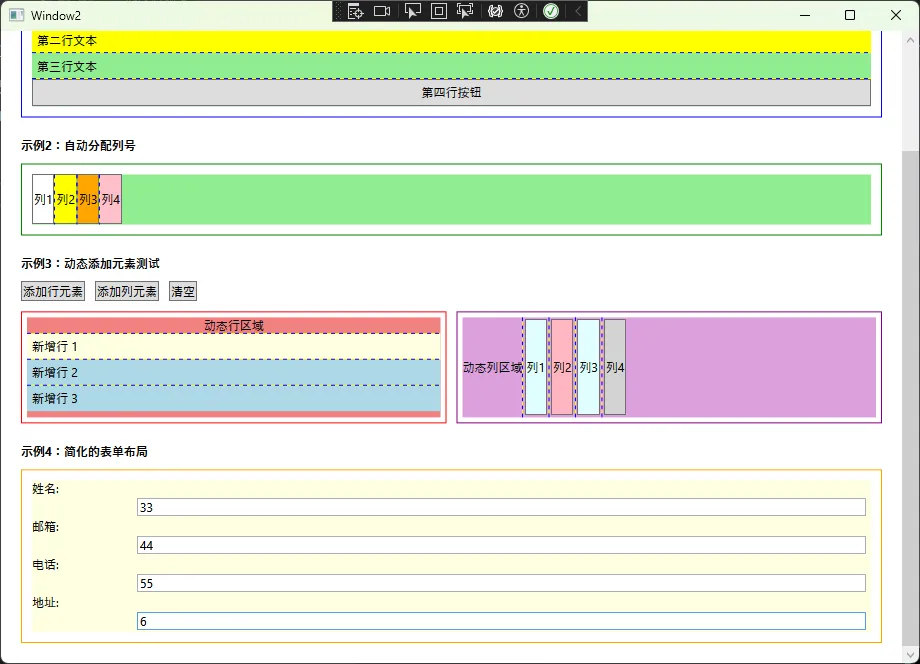
XAML中的使用:
XML<Window x:Class="AppDependencyProperty.Window2"
        xmlns="http://schemas.microsoft.com/winfx/2006/xaml/presentation"
        xmlns:x="http://schemas.microsoft.com/winfx/2006/xaml"
        xmlns:d="http://schemas.microsoft.com/expression/blend/2008"
        xmlns:mc="http://schemas.openxmlformats.org/markup-compatibility/2006"
        xmlns:local="clr-namespace:AppDependencyProperty"
        mc:Ignorable="d"
        Title="Window2" Height="450" Width="800">
    <ScrollViewer>
        <StackPanel Margin="20">

            <TextBlock Text="GridHelper 附加属性示例"
                       FontSize="18" FontWeight="Bold"
                       Margin="0,0,0,20"/>

            <!-- 示例1:自动行号 -->
            <TextBlock Text="示例1:自动分配行号" FontWeight="Bold" Margin="0,0,0,10"/>
            <Border BorderBrush="Blue" BorderThickness="1" Padding="10" Margin="0,0,0,20">
                <Grid local:GridHelper.AutoRow="True"
                      local:GridHelper.ShowGridLines="True"
                      Background="LightBlue">

                    <TextBlock Text="第一行文本" Background="White" Padding="5"/>
                    <TextBlock Text="第二行文本" Background="Yellow" Padding="5"/>
                    <TextBlock Text="第三行文本" Background="LightGreen" Padding="5"/>
                    <Button Content="第四行按钮" Padding="5"/>

                </Grid>
            </Border>

            <!-- 示例2:自动列号 -->
            <TextBlock Text="示例2:自动分配列号" FontWeight="Bold" Margin="0,0,0,10"/>
            <Border BorderBrush="Green" BorderThickness="1" Padding="10" Margin="0,0,0,20">
                <Grid local:GridHelper.AutoColumn="True"
                      local:GridHelper.ShowGridLines="True"
                      Background="LightGreen"
                      Height="50">

                    <Button Content="列1" Background="White"/>
                    <Button Content="列2" Background="Yellow"/>
                    <Button Content="列3" Background="Orange"/>
                    <Button Content="列4" Background="Pink"/>

                </Grid>
            </Border>

            <!-- 示例3:动态添加元素 -->
            <TextBlock Text="示例3:动态添加元素测试" FontWeight="Bold" Margin="0,0,0,10"/>
            <StackPanel Orientation="Horizontal" Margin="0,0,0,10">
                <Button x:Name="addRowButton" Content="添加行元素" Click="AddRowElement_Click" Margin="0,0,10,0"/>
                <Button x:Name="addColumnButton" Content="添加列元素" Click="AddColumnElement_Click" Margin="0,0,10,0"/>
                <Button x:Name="clearButton" Content="清空" Click="Clear_Click"/>
            </StackPanel>

            <Grid>
                <Grid.ColumnDefinitions>
                    <ColumnDefinition Width="*"/>
                    <ColumnDefinition Width="*"/>
                </Grid.ColumnDefinitions>

                <!-- 动态行Grid -->
                <Border Grid.Column="0" BorderBrush="Red" BorderThickness="1" Padding="5" Margin="0,0,5,0">
                    <Grid x:Name="dynamicRowGrid"
                          local:GridHelper.AutoRow="True"
                          local:GridHelper.ShowGridLines="True"
                          Background="LightCoral"
                          MinHeight="100">
                        <TextBlock Text="动态行区域" HorizontalAlignment="Center"/>
                    </Grid>
                </Border>

                <!-- 动态列Grid -->
                <Border Grid.Column="1" BorderBrush="Purple" BorderThickness="1" Padding="5" Margin="5,0,0,0">
                    <Grid x:Name="dynamicColumnGrid"
                          local:GridHelper.AutoColumn="True"
                          local:GridHelper.ShowGridLines="True"
                          Background="Plum"
                          Height="100">
                        <TextBlock Text="动态列区域" VerticalAlignment="Center"/>
                    </Grid>
                </Border>
            </Grid>

            <!-- 示例4:表单布局 -->
            <TextBlock Text="示例4:简化的表单布局" FontWeight="Bold" Margin="0,20,0,10"/>
            <Border BorderBrush="Orange" BorderThickness="1" Padding="10">
                <Grid local:GridHelper.AutoRow="True" Background="LightYellow">
                    <Grid.ColumnDefinitions>
                        <ColumnDefinition Width="100"/>
                        <ColumnDefinition Width="*"/>
                    </Grid.ColumnDefinitions>

                    <!-- 不需要手动设置Grid.Row,会自动分配 -->
                    <TextBlock Text="姓名:" Grid.Column="0" VerticalAlignment="Center"/>
                    <TextBox Grid.Column="1" Margin="5,2"/>

                    <TextBlock Text="邮箱:" Grid.Column="0" VerticalAlignment="Center"/>
                    <TextBox Grid.Column="1" Margin="5,2"/>

                    <TextBlock Text="电话:" Grid.Column="0" VerticalAlignment="Center"/>
                    <TextBox Grid.Column="1" Margin="5,2"/>

                    <TextBlock Text="地址:" Grid.Column="0" VerticalAlignment="Center"/>
                    <TextBox Grid.Column="1" Margin="5,2"/>

                </Grid>
            </Border>

        </StackPanel>
    </ScrollViewer>
</Window>
🚨 避开这些常见陷阱
1. 线程安全问题
C#// ❌ 错误:在非UI线程中直接设置依赖属性
private void BackgroundWorker_DoWork(object sender, DoWorkEventArgs e)
{
    MyProperty = "新值"; // 可能抛出异常
}

// ✅ 正确:使用Dispatcher
private void BackgroundWorker_DoWork(object sender, DoWorkEventArgs e)
{
    Dispatcher.Invoke(() => MyProperty = "新值");
}
2. 内存泄漏风险
C#// ❌ 错误:静态回调中持有实例引用
private static void OnPropertyChanged(DependencyObject d, DependencyPropertyChangedEventArgs e)
{
    var control = d as MyControl;
    someStaticList.Add(control); // 可能导致内存泄漏
}

// ✅ 正确:使用弱引用或及时清理
private static void OnPropertyChanged(DependencyObject d, DependencyPropertyChangedEventArgs e)
{
    var control = d as MyControl;
    control?.HandlePropertyChange(); // 不保存引用
}
🎯 总结:从WinForm到WPF的华丽转身
通过本文的学习,你已经掌握了依赖属性注册的核心技能:
🔑 三个关键要点:
- 理解本质:依赖属性不是简单的属性升级,而是WPF数据绑定和UI系统的基石
- 掌握模式:Register、RegisterAttached、RegisterReadOnly三种注册方式各有用武之地
- 注重细节:验证回调、强制回调、线程安全等细节决定了代码质量
💪 实战建议:
- 先从简单的依赖属性开始练手
- 逐步添加验证和回调逻辑
- 多研究WPF内置控件的依赖属性实现
从WinForm到WPF的转型路上,依赖属性是你必须跨越的第一道门槛。一旦掌握,你会发现WPF开发的世界如此精彩!
🤝 互动时间:
- 你在从WinForm转WPF的过程中,遇到过哪些让你印象深刻的问题?
- 除了本文提到的场景,你还在哪些地方用到了依赖属性?
觉得这篇文章对你的WPF学习有帮助吗?请转发给更多正在转型路上的同行,让我们一起在C#开发的道路上越走越远! 🚀
本文作者:技术老小子
本文链接:
版权声明:本博客所有文章除特别声明外,均采用 BY-NC-SA 许可协议。转载请注明出处!
目录