
Press Ctrl+ and K to search
目录
作为一名C#开发者,你是否遇到过这样的场景:需要批量处理文件、自动化测试桌面应用、或者让程序自动操作其他软件?手动操作既耗时又容易出错,而传统的API集成方案往往受限于第三方应用的开放性。
今天就来分享一个C#开发者的"秘密武器"——UI Automation。通过这个技术,你可以让程序像人一样操作任何Windows应用程序,实现真正的"所见即所得"自动化。本文将通过一个完整的记事本自动化实例,教你掌握这项实用技能。
🔍 痛点分析:为什么需要UI自动化?
在实际开发中,我们经常遇到这些困扰:
传统方案的局限性:
- API集成:依赖第三方应用提供接口,很多软件根本没有
- 脚本录制工具:功能单一,无法与C#项目深度集成
- 人工操作:效率低下,容易出错,无法批量处理
UI Automation的优势:
- 🎯 通用性强:支持所有Windows应用程序
- 🔧 原生集成:微软官方技术,与.NET完美兼容
- 💪 功能全面:查找控件、模拟点击、文本输入、状态检测
🛠️ 技术方案:UI Automation核心架构
UI Automation基于Windows的可访问性架构,每个UI元素都有对应的自动化对象,我们可以通过以下方式操作:
C#// 核心组件架构
IUIAutomation automation = new CUIAutomation();  // 自动化引擎
IUIAutomationElement desktop = automation.GetRootElement();  // 桌面根元素
IUIAutomationCondition condition;  // 查找条件
IUIAutomationElement targetElement;  // 目标控件
🚀 实战代码:记事本完整自动化方案
📦 项目配置
首先创建项目文件,添加必要的依赖:
XML<Project Sdk="Microsoft.NET.Sdk">
  <PropertyGroup>
    <OutputType>Exe</OutputType>
    <TargetFramework>net8.0</TargetFramework>
    <UseWindowsForms>true</UseWindowsForms>
  </PropertyGroup>

  <ItemGroup>
    <COMReference Include="UIAutomationClient">
      <WrapperTool>tlbimp</WrapperTool>
      <Guid>944de083-8fb8-45cf-bcb7-c477acb2f897</Guid>
    </COMReference>
  </ItemGroup>
</Project>
🔧 核心工具类:ElementFinder
C#public static class ElementFinder
{
    private static readonly IUIAutomation _automation = new CUIAutomation();

    /// <summary>
    /// 获取桌面根元素 - 所有UI操作的起点
    /// </summary>
    public static IUIAutomationElement GetDesktop()
    {
        return _automation.GetRootElement();
    }

    /// <summary>
    /// 智能查找控件 - 支持超时和异常处理
    /// </summary>
    public static IUIAutomationElement? FindElementSafely(
        IUIAutomationElement parent,
        IUIAutomationCondition condition,
        TreeScope scope,
        int timeoutMs = 5000)
    {
        var endTime = DateTime.Now.AddMilliseconds(timeoutMs);

        while (DateTime.Now < endTime)
        {
            try
            {
                var element = parent.FindFirst(scope, condition);
                if (element != null) return element;
            }
            catch (COMException)
            {
                // UI元素可能正在变化,继续尝试
            }

            Thread.Sleep(100); // 避免CPU占用过高
        }

        return null;
    }

    /// <summary>
    /// 按控件类型查找 - 最常用的查找方式
    /// </summary>
    public static IUIAutomationElement? FindFirstByControlType(
        IUIAutomationElement parent,
        int controlTypeId,
        int timeoutMs = 3000)
    {
        var condition = _automation.CreatePropertyCondition(
            UIA_PropertyIds.UIA_ControlTypePropertyId, controlTypeId);
        return FindElementSafely(parent, condition, TreeScope.TreeScope_Subtree, timeoutMs);
    }
}
⌨️ 键盘输入模拟器
Windows 11的新版记事本使用了特殊控件,传统的SendKeys可能不稳定,我们使用Windows API直接发送键盘事件:
C#public static class KeyboardHelper
{
    [DllImport("user32.dll")]
    private static extern void keybd_event(byte bVk, byte bScan, uint dwFlags, UIntPtr dwExtraInfo);

    [DllImport("user32.dll")]
    private static extern short VkKeyScan(char ch);

    private const uint KEYEVENTF_KEYUP = 0x0002;
    private const byte VK_CONTROL = 0x11;

    /// <summary>
    /// 发送文本 - 支持中英文和特殊字符
    /// </summary>
    public static void SendText(string text)
    {
        foreach (char c in text)
        {
            if (c == '\r') continue;
            SendChar(c);
        }
    }

    /// <summary>
    /// 发送单个字符 - 处理Shift组合键
    /// </summary>
    public static void SendChar(char character)
    {
        short vkKey = VkKeyScan(character);
        byte virtualKey = (byte)(vkKey & 0xFF);
        bool needShift = (vkKey & 0x0100) != 0;

        if (needShift)
            keybd_event(0x10, 0, 0, UIntPtr.Zero); // Shift down

        keybd_event(virtualKey, 0, 0, UIntPtr.Zero); // Key down
        keybd_event(virtualKey, 0, KEYEVENTF_KEYUP, UIntPtr.Zero); // Key up

        if (needShift)
            keybd_event(0x10, 0, KEYEVENTF_KEYUP, UIntPtr.Zero); // Shift up

        Thread.Sleep(10);
    }

    /// <summary>
    /// Ctrl+S快捷键 - 常用组合键封装
    /// </summary>
    public static void SendCtrlS()
    {
        keybd_event(VK_CONTROL, 0, 0, UIntPtr.Zero);
        SendChar('s');
        keybd_event(VK_CONTROL, 0, KEYEVENTF_KEYUP, UIntPtr.Zero);
    }
}
🎯 主要业务逻辑:NotepadAutomation
C#public class NotepadAutomation
{
    private Process? _notepadProcess;
    private IUIAutomationElement? _notepadWindow;

    /// <summary>
    /// 完整自动化流程 - 一键执行所有操作
    /// </summary>
    public bool RunTest()
    {
        try
        {
            if (!OpenNotepad()) return false;
            if (!InputRandomText()) return false;
            if (!SaveFile()) return false;
            if (!CloseNotepad()) return false;

            Console.WriteLine("✅ 自动化任务完成!");
            return true;
        }
        catch (Exception ex)
        {
            Console.WriteLine($"❌ 执行失败: {ex.Message}");
            return false;
        }
        finally
        {
            CleanUp(); // 确保资源释放
        }
    }

    /// <summary>
    /// 智能文本输入 - 适配新旧版本记事本
    /// </summary>
    private bool InputRandomText()
    {
        if (_notepadWindow == null) return false;

        // 多策略查找文本编辑区域
        var editControl = ElementFinder.FindFirstByControlType(
            _notepadWindow, UIA_ControlTypeIds.UIA_EditControlTypeId, 2000);

        // Windows 11新版记事本使用RichEditD2DPT
        if (editControl == null)
        {
            editControl = ElementFinder.FindByClassName(_notepadWindow, "RichEditD2DPT", 3000);
        }

        if (editControl == null)
        {
            Console.WriteLine("⚠️ 未找到编辑控件,使用直接输入模式");
            return InputTextDirectlyToWindow();
        }

        editControl.SetFocus();
        Thread.Sleep(500);

        // 生成测试数据
        var textLines = GenerateRandomTextLines(10);
        var fullText = string.Join(Environment.NewLine, textLines);

        // 优先使用ValuePattern,失败则用键盘输入
        return TryInputText(editControl, fullText);
    }

    /// <summary>
    /// 智能保存文件 - 处理Windows文件对话框
    /// </summary>
    private bool SaveFile()
    {
        _notepadWindow?.SetFocus();
        KeyboardHelper.SendCtrlS();
        Thread.Sleep(3000);

        var desktop = ElementFinder.GetDesktop();
        var saveDialog = FindSaveDialog(desktop);

        if (saveDialog == null)
        {
            Console.WriteLine("❌ 未找到保存对话框");
            return false;
        }

        var fileName = $"AutoTest_{DateTime.Now:yyyyMMddHHmmss}.txt";

        // 关键修复:智能识别文件名输入框,排除搜索框
        var fileNameEdit = FindFileNameEditBox(saveDialog);
        if (fileNameEdit != null && !IsSearchBox(fileNameEdit))
        {
            fileNameEdit.SetFocus();
            Thread.Sleep(300);
            KeyboardHelper.SendCtrlA();
            KeyboardHelper.SendText(fileName);
        }

        // 点击保存按钮
        var saveButton = ElementFinder.FindButton(saveDialog, "Save", 2000) ??
                        ElementFinder.FindByAutomationId(saveDialog, "1", 2000);

        if (saveButton != null)
        {
            ClickElement(saveButton);
            Thread.Sleep(2000);

            // 验证文件是否保存成功
            var desktopPath = Environment.GetFolderPath(Environment.SpecialFolder.Desktop);
            return File.Exists(Path.Combine(desktopPath, fileName));
        }

        return false;
    }

    /// <summary>
    /// 防止误操作:排除搜索框
    /// </summary>
    private bool IsSearchBox(IUIAutomationElement element)
    {
        var name = element.CurrentName ?? "";
        var automationId = element.CurrentAutomationId ?? "";

        return name.Contains("Search") || automationId.Contains("Search");
    }
}
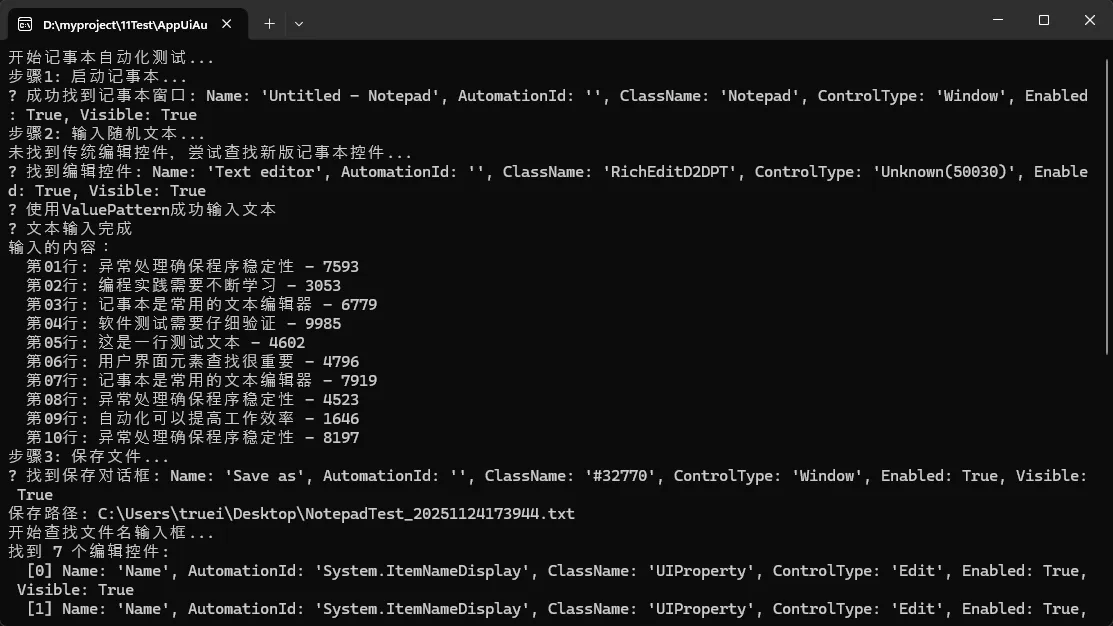
⚠️ 开发要点与避坑指南
🔥 性能优化技巧
- 合理使用超时机制
C#// ❌ 错误:无限等待
var element = parent.FindFirst(scope, condition);

// ✅ 正确:设置超时
var element = FindElementSafely(parent, condition, scope, 5000);
- 避免频繁查找
C#// ❌ 错误:重复查找
for(int i = 0; i < 100; i++) {
    var button = FindButton(window, "确定");
    button?.Click();
}

// ✅ 正确:缓存元素引用
var button = FindButton(window, "确定");
for(int i = 0; i < 100; i++) {
    button?.Click();
}
🛡️ 异常处理最佳实践
C#public static bool SafeClick(IUIAutomationElement element)
{
    try
    {
        // 方法1:使用InvokePattern
        var invokePattern = element.GetCurrentPattern(UIA_PatternIds.UIA_InvokePatternId)
            as IUIAutomationInvokePattern;
        invokePattern?.Invoke();
        return true;
    }
    catch (COMException)
    {
        // 方法2:备用方案 - 键盘模拟
        try
        {
            element.SetFocus();
            Thread.Sleep(100);
            KeyboardHelper.SendEnter();
            return true;
        }
        catch
        {
            return false;
        }
    }
}
💡 兼容性处理
不同版本的Windows应用可能有不同的控件结构,建议使用多策略查找:
C#private IUIAutomationElement? FindEditControl(IUIAutomationElement parent)
{
    // 策略1:标准Edit控件
    var edit = FindFirstByControlType(parent, UIA_ControlTypeIds.UIA_EditControlTypeId);
    if (edit != null) return edit;

    // 策略2:Document控件(如Word、记事本新版)
    edit = FindFirstByControlType(parent, UIA_ControlTypeIds.UIA_DocumentControlTypeId);
    if (edit != null) return edit;

    // 策略3:按类名查找
    return FindByClassName(parent, "RichEditD2DPT");
}
📈 实际应用场景扩展
🔧 办公自动化
- 批量处理Excel文件
- 自动填写表单
- 文档格式化处理
🧪 自动化测试
- 桌面应用功能测试
- 兼容性测试
- 压力测试
📊 数据采集
- 从遗留系统提取数据
- 监控应用状态
- 定时任务执行
🎯 总结与展望
通过本文的学习,你已经掌握了C# UI Automation的核心技能:
三个关键要点:
- ElementFinder工具类:提供了稳定可靠的控件查找机制
- 多策略兼容:适配不同版本和类型的Windows应用
- 完善的异常处理:确保程序在各种情况下都能稳定运行
收藏级代码模板:
- 通用的控件查找封装
- 键盘输入模拟器
- 文件对话框处理方案
UI Automation不仅仅是一个技术工具,更是提升开发效率、解决实际问题的利器。在AI时代,掌握这样的自动化技能将让你在职场上更具竞争力。
💬 互动时间
- 你在项目中遇到过哪些需要UI自动化解决的场景?
- 对于复杂的企业级应用,你认为还需要哪些增强功能?
如果这篇文章对你有帮助,欢迎转发给更多的C#开发同行!让我们一起在自动化的道路上越走越远!
🔍 延伸学习建议
- 深入研究Windows Accessibility API
- 学习Selenium WebDriver用于Web自动化
- 探索RPA(机器人流程自动化)在企业中的应用
觉得有用请点赞收藏,你的支持是我持续创作的动力!
本文作者:技术老小子
本文链接:
版权声明:本博客所有文章除特别声明外,均采用 BY-NC-SA 许可协议。转载请注明出处!
目录